How To Use Multiple Triggering Events in Workflows
Using the Workflow builder, there are numerous possibilities to completely customize the triggers and actions for your business needs.
Some workflows may be based on one triggering action, while others may be created using several triggers. For example, perhaps you want to add contacts to your Facebook audience based on a specific form being submitted, or a specific survey being submitted, a particular tag being added, or an appointment booked in a certain calendar. You can set up a workflow using all 4 triggers to lead down the same workflow path of actions.
Step 1: Set up the Workflow Triggers
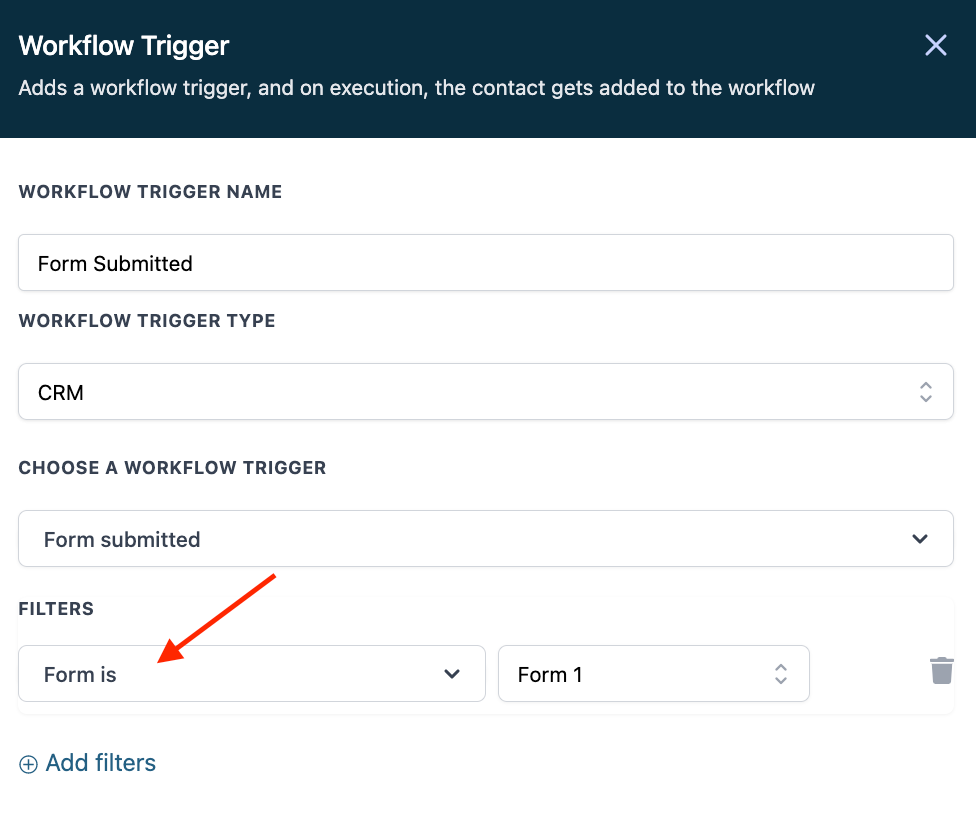
Here you can see 4 triggers have been added to the Workflow. If kept generic without filters, any survey submission, any contact tag, any form submission, and any appointment would fire off the actions.
- Customize the filters for each trigger to specify which survey, tag, form, and calendar you would like to have the Workflow run for.



Step 2: Set up the Workflow Actions
- Add whichever action(s) you’d like into the Workflow
- Save and Publish the Workflow, and it will run for the multiple triggers you’ve set up.
Related Articles
How to Create and Use Workflows
This is an overview of the workflow builder. The workflow builder is a visual builder feature that allows you to combine trigger and campaign type features with some added functionality. Step 1: Access the Workflow Dashboard Navigate to workflows, ...What's the If/Else Conditional Event and How to Use It in Workflows
Using the If/Else Workflow condition allows you to create different paths within a Workflow. This allows you to customize Workflows on a deeper level to enhance your business. There are numerous options for customizing the If/Else condition by adding ...How And When To Use The Event Start Date In Workflows
The Event Start Date action allows you to build automation around a specific date & time. Once you set the Event Start Date, the items in that workflow can be sent in relation to that day and time using the 'before' and ‘after’ actions. This is ...Checking the Status of Workflows
Here's how to view and understand the Status of Workflows. Navigate to the Status tab within the Workflow Builder. Use the dropdown menus to sort and filter through the current statuses for your Workflow. Here, you can view the Contacts, Date Added, ...Customizing Delivery Timeframes Within Workflows
There are multiple options for setting up the timing of workflows. In this tutorial, we will show you how to use time frames, or “windows” to customize your workflow actions and timing using delivery windows. You can set up a default setting for the ...