Checking the Status of Workflows
Here's how to view and understand the Status of Workflows.
- Navigate to the Status tab within the Workflow Builder.
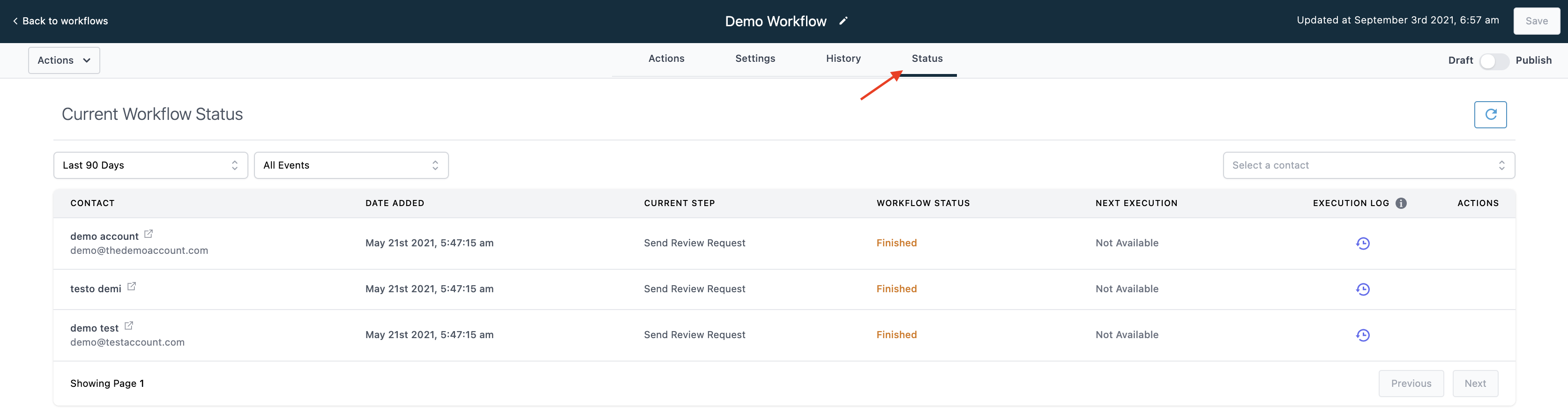
- Use the dropdown menus to sort and filter through the current statuses for your Workflow.
- Here, you can view the Contacts, Date Added, Current Step, Workflow Status, Next Execution, Execution Log, and Actions.
- For Contacts, you will be able to view the full history of actions for the contact within the specific workflow. If they’ve been in it more than once, you’ll see all the actions from each time they were added.
- Next Execution will give you a preview of what their next step in the chain of events will be.
- The Execution Log allows you to view the history of actions for the contact within the specific Workflow. If they’ve been in it more than once, you can use the icon to the left of their name for the complete history within this Workflow.
Related Articles
How to Create and Use Workflows
This is an overview of the workflow builder. The workflow builder is a visual builder feature that allows you to combine trigger and campaign type features with some added functionality. Step 1: Access the Workflow Dashboard Navigate to workflows, ...Workflows Overview
This video is an overview of workflows which also explains how to create a new workflow.Add a Delay in Workflows
This video explains how to add a delayed response after an action in workflows.Customizing Delivery Timeframes Within Workflows
There are multiple options for setting up the timing of workflows. In this tutorial, we will show you how to use time frames, or “windows” to customize your workflow actions and timing using delivery windows. You can set up a default setting for the ...How to Organize Your Workflows Into Folders
When using workflows, you may want to categorize them to stay organized. Using the Workflow Folders feature will help you stay organized. Step 1: Creating Folders Navigate to Workflows Click "Create folder" in the top right In the popup window, name ...