Customizing Delivery Timeframes Within Workflows
There are multiple options for setting up the timing of workflows. In this tutorial, we will show you how to use time frames, or “windows” to customize your workflow actions and timing using delivery windows.
You can set up a default setting for the workflow as a whole, or use wait steps to customize just certain actions.
Step 1: Using Default Settings To Customize the Workflow Delivery Window
- Navigate to the Workflow Builder
- Click into Settings
- Under “Time Window” choose “Any Time” or “Specific Time”
- Any time: messages can be sent from the workflow any time, any day.
- Specific time: messages are restricted to specific windows of day/time you set (i.e. Mon-Fri 8am-5pm).

- Here’s an example of how you can set the window to Saturday and Sunday 8am-12pm:

- Any day highlighted in blue is open for sending.
Step 2: Using Workflow Actions For Timing
There may be instances where you want to be more specific with the delivery window, such as sending an email communication on the 5th of the month, unless it’s a weekend (and in that case you’d want the email to be sent out the following Monday).
- Create an “If/Else” Workflow condition action, and set it up as such, so the current day of the month is the 5th and the day of the week is not Sunday.

- The contact will go down the YES or NO path accordingly.
- If the contact goes down the NO path, meaning the condition was not met. This means it IS Sunday, so you will want to set up a wait action for 1 day and the action will occur one day later, on Monday:
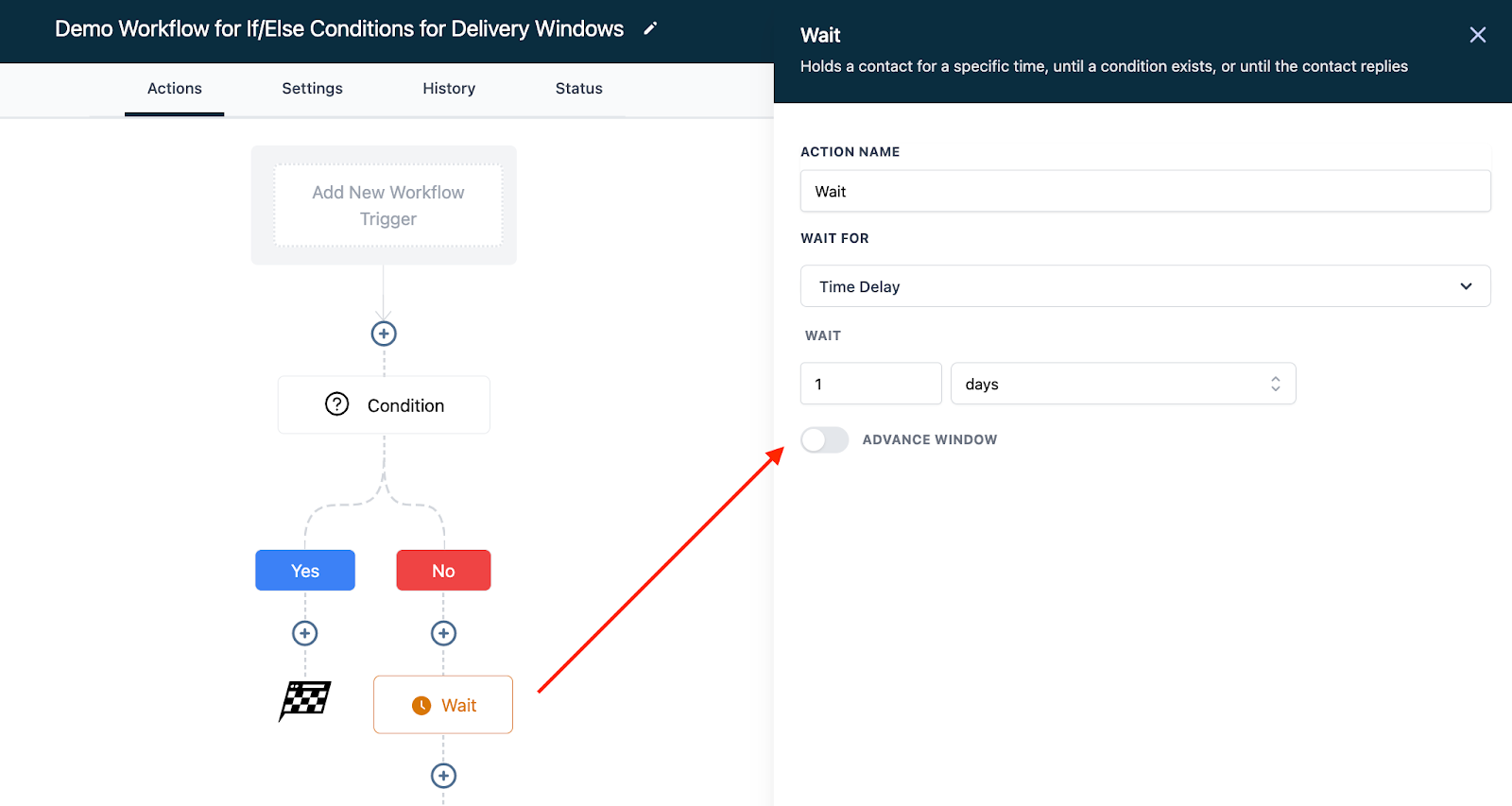
- If the goes down the YES path, it IS NOT Sunday (both conditions were met). However, it could still be Saturday. Therefore, you’ll want to set up another “If/Else” action.
- Set up the condition for “Current day of week” > “is not” > “Saturday”.

- If this condition is met, meaning it is NOT Saturday, the contact will go down the YES path, and you can add your email action or anything else.
- If the condition is not met, meaning it IS Saturday, the contact will go down the NO path.
- Add a wait step for 2 days (to get to Monday) and then you can add your email action or any other actions.

Related Articles
Customizing Your Settings in Workflows
This tutorial will show you how to customize your Workflow Settings. Navigate to the Settings tab within the Workflow Builder. Here you'll see a list of customizable settings. Choose a sending window. If you select Any Time, the workflow will occur ...How to Create and Use Workflows
This is an overview of the workflow builder. The workflow builder is a visual builder feature that allows you to combine trigger and campaign type features with some added functionality. Step 1: Access the Workflow Dashboard Navigate to workflows, ...Customizing Funnel and Website Colors
Within the funnel or website builder, you can completely customize each step, including colors, fonts, and more. Follow these steps to learn how to customize the colors of your funnel or website, using a few different methods. You can make overall ...Checking the Status of Workflows
Here's how to view and understand the Status of Workflows. Navigate to the Status tab within the Workflow Builder. Use the dropdown menus to sort and filter through the current statuses for your Workflow. Here, you can view the Contacts, Date Added, ...What's the If/Else Conditional Event and How to Use It in Workflows
Using the If/Else Workflow condition allows you to create different paths within a Workflow. This allows you to customize Workflows on a deeper level to enhance your business. There are numerous options for customizing the If/Else condition by adding ...