How To Build, Edit & Utilize Forms
Using forms can be a great way to capture information for new leads, and many other aspects of your business. Understanding how to use the form builder is a critical piece to being able to best use the system to customize it for your business needs.
Step 1: Accessing and Navigating the Forms Section
- Navigate to Forms. You’ll see 3 tabs: Builder, Analyze, and Submissions
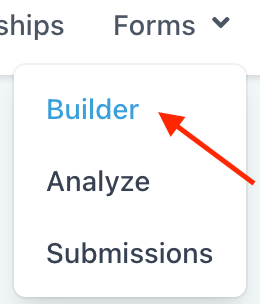
- “Builder” features a list of all your existing forms. You can also create a new form from this page.
- “Analyze” gives you an overview of the number of submissions, as well as a graph. You can sort by form, choose a specific time period, and more.
- “Submissions” allows you to sort through the submissions for all forms or select a specific form. You can also search for a specific submission by name, email, phone number or contact ID.
Step 2: Creating a Form
- Navigate to the Builder by clicking into an existing form to edit it, or clicking “Create New Form” in the top right corner. You’ll be taken into the form builder.
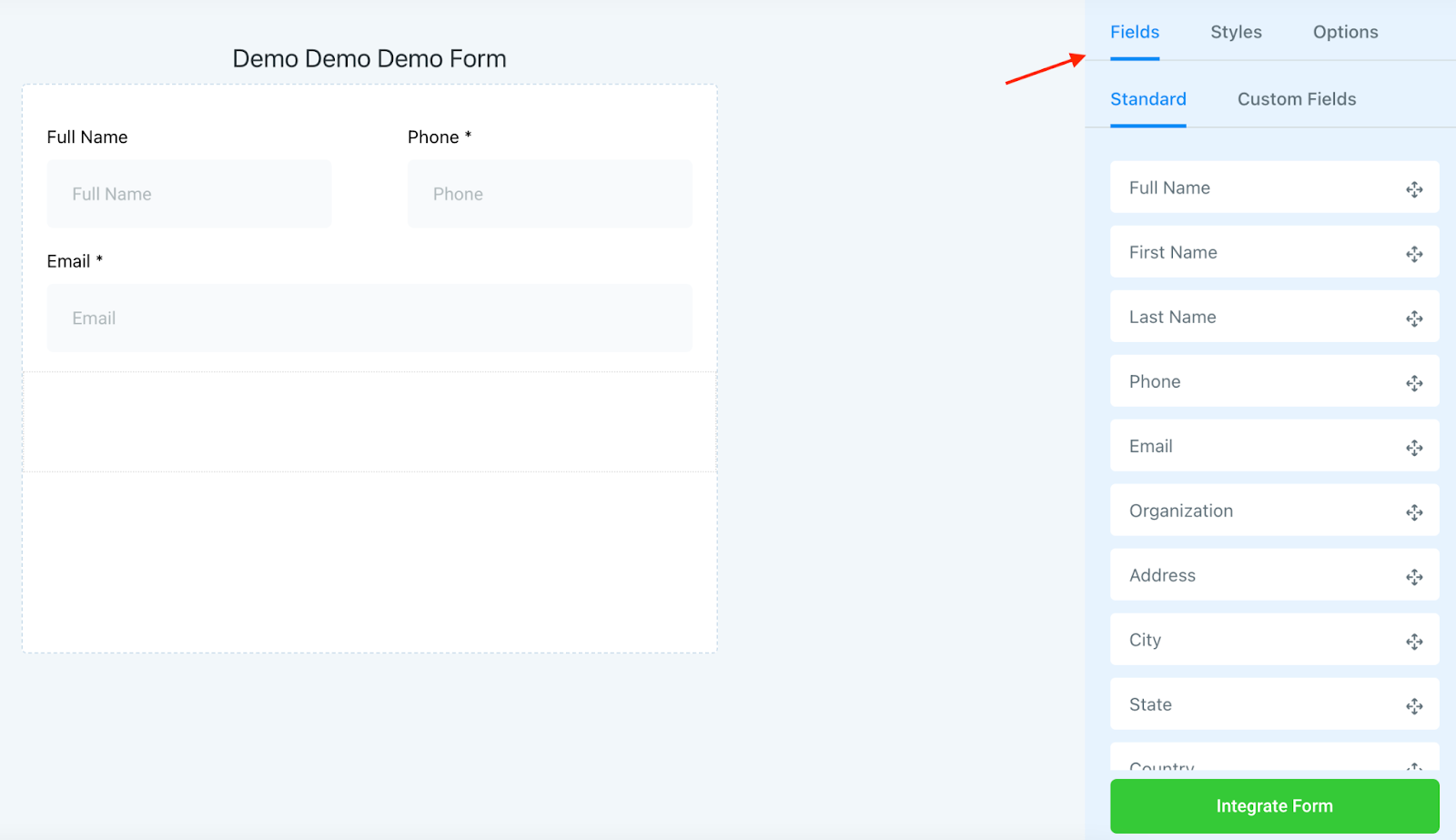
- You can give your form a name by clicking on ‘Options’ and editing the form name field.
- Under “Fields” you can drag and drop standard and custom fields into the form builder.
- You can click the X on a field you’ve added to remove it.
- Using Custom fields, you can completely customize forms with specific fields that pertain to your business. Standard Fields include things like contact information, birthday, etc. Custom Fields can be anything from “What’s your Favorite Food?” to “Annual Income” to “Favorite Movie” and more… you can completely customize custom fields and include text boxes, signature fields, drop-down menus for selecting from a list of options, etc.
- Under “Styles” you can customize the layout, colors, add any CSS, and toggle on or off the Agency Branding.
- Under “Options” you can choose the form name, determine what happens upon submission (is there a page redirect or a message), and you can add a Facebook Pixel ID. You can also toggle on or off the Sticky Contact feature.
Step 3: Integrating and Using a Form
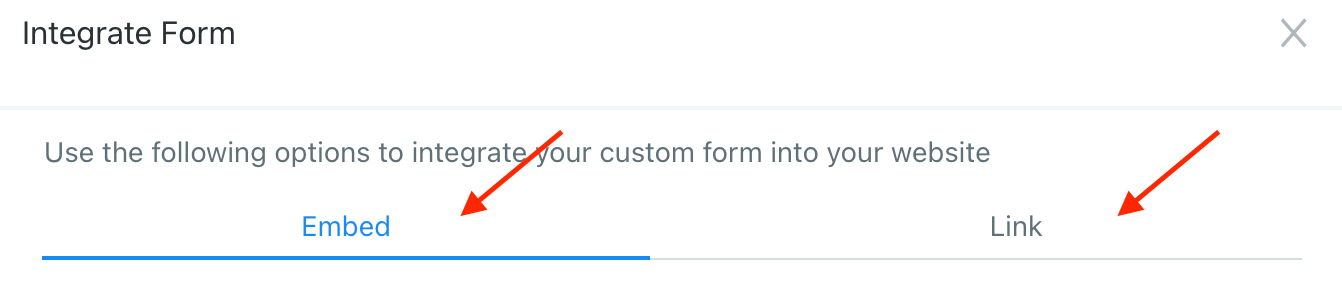
- Once you create a form and save any changes, you can click “Integrate Form” to access a link or embed code. Embed code can be included in a website or funnel page. A link can be pasted into a SMS or email message.
- Forms can also be connected in a calendar (check out Calendar Settings to learn more about this.)
- Once a form is integrated into the system in one of these ways, leads/contacts will be able to fill it out accordingly, and you can view the submissions in your system.
NOTE: Check out our "How to Customize a Form or Survey" tutorial for a video and more details on customization of forms and surveys.
Related Articles
How To Build, Edit And Utilize Surveys
Using surveys and forms are a great way to capture information for new leads, and many other aspects of your business. Understanding how to use the survey builder is a critical piece to being able to best use the system to customize it for your ...How to Utilize the Calendar
Calendars are a useful way for managing appointments in your system. Before creating a calendar, you’ll want to ensure you have an understanding on unassigned vs. team calendars. Please refer to our tutorial “How to Create and Utilize Teams Within ...How to Create, Edit and Delete Custom Fields
Custom Fields allow you to create contact specific fields that contain specific information about that contact. These allow you to add to the Standard Fields and gather whatever type of information you require. Step 1: Create Custom Fields Navigate ...How to Create and Edit an Unassigned Calendar
This is an overview on how to create and edit your 'unassigned' calendars (or non-team calendars). Step 1: Create a New Calendar or Edit an existing Calendar Navigate to Calendars Click on +New Calendar to add a new calendar OR click the … next to an ...Styling Custom Forms
This video has explained how to style custom forms. label{color:#000000!important; display: none;} .form-control {background: #fff; font-size: 20px; font-weight: normal; border: 1px solid #ccc; border-radius: 6px; height: 81px;} .form-builder--item ...