How to Create and Edit an Unassigned Calendar
This is an overview on how to create and edit your 'unassigned' calendars (or non-team calendars).
Step 1: Create a New Calendar or Edit an existing Calendar
- Navigate to Calendars
- Click on +New Calendar to add a new calendar OR click the … next to an existing calendar to open the menu to edit it.
- A popup window will appear for you to customize the calendar.
Step 2: Fill out Tab 1 - Team and Event Setup
- Choose the Name, Description, Title, and Meeting Location
- Choose an event color for calendar syncing.
- Choose a linked calendar (if you have a Google calendar synced.)
- Choose a sync option - one-way, two-way, or disable trigger.
- NOTE: we have a full tutorial covering the different options.
- Save and Continue to the next tab.
Step 3: Fill out Tab 2 - Availability
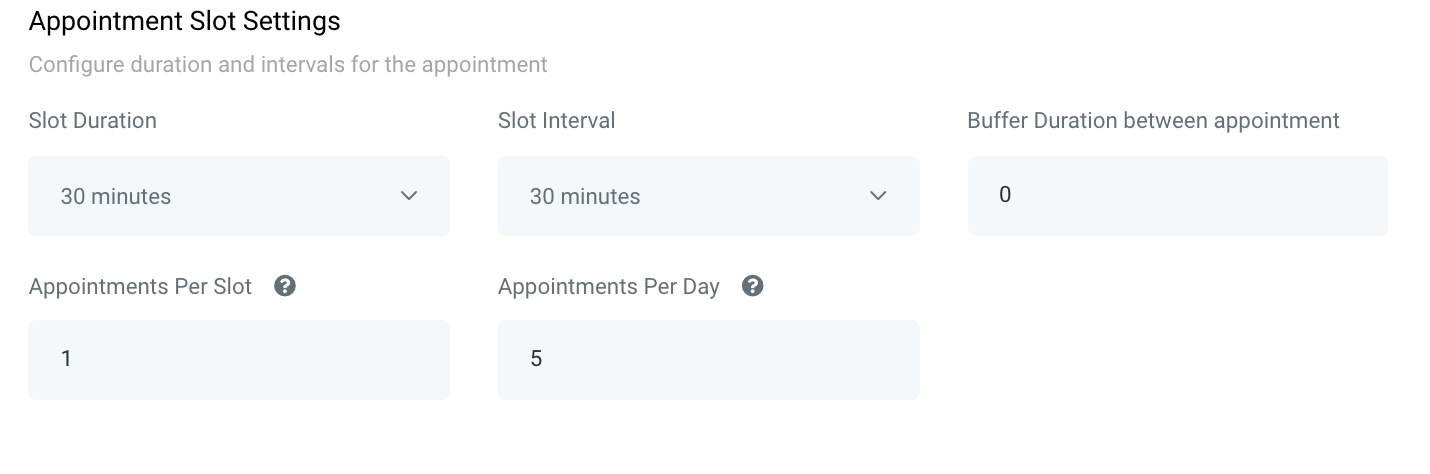
- Fill out the “Appointment Slot Settings” to configure the duration and intervals for appointments. Here you can customize how long an appointment slot is, if there’s a buffer of time between appointments, how many appointments can happen at once, and how many per day.
- For example, if this is a 30-min meeting calendar and you want to schedule 1 appointment per time period, with no buffer, and you’re comfortable with back-to-back appointments with no buffer, but you want to max-out at 5 per day, you’d set the slot settings up like this:
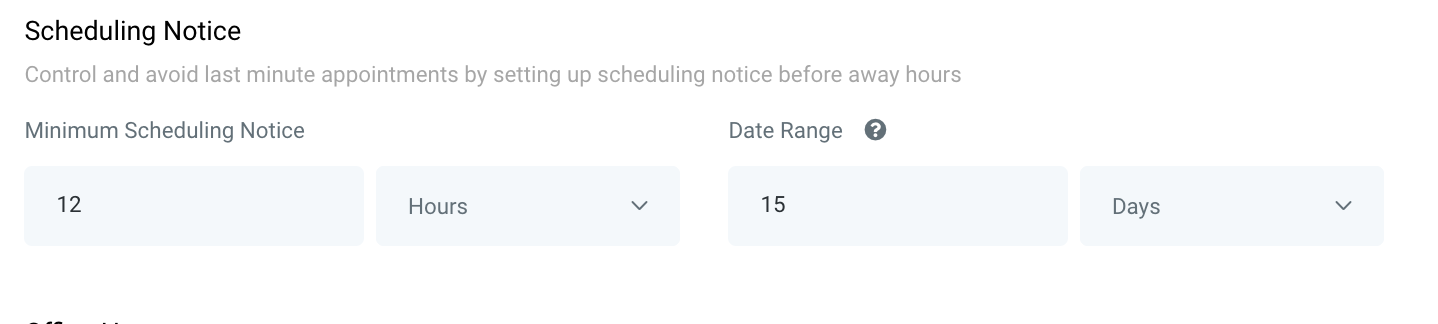
- Continue on to the Scheduling Notice section where you can set up the timeframe in which appointments can be booked. This can help prevent last-minute bookings, or bookings too far out.
- The minimum timeframe can be set by hours, days, weeks, or months. The maximum time frame can be set by days, weeks, or months. The example below shows a minimum of 12 hour notice, and a maximum of 15 days out:
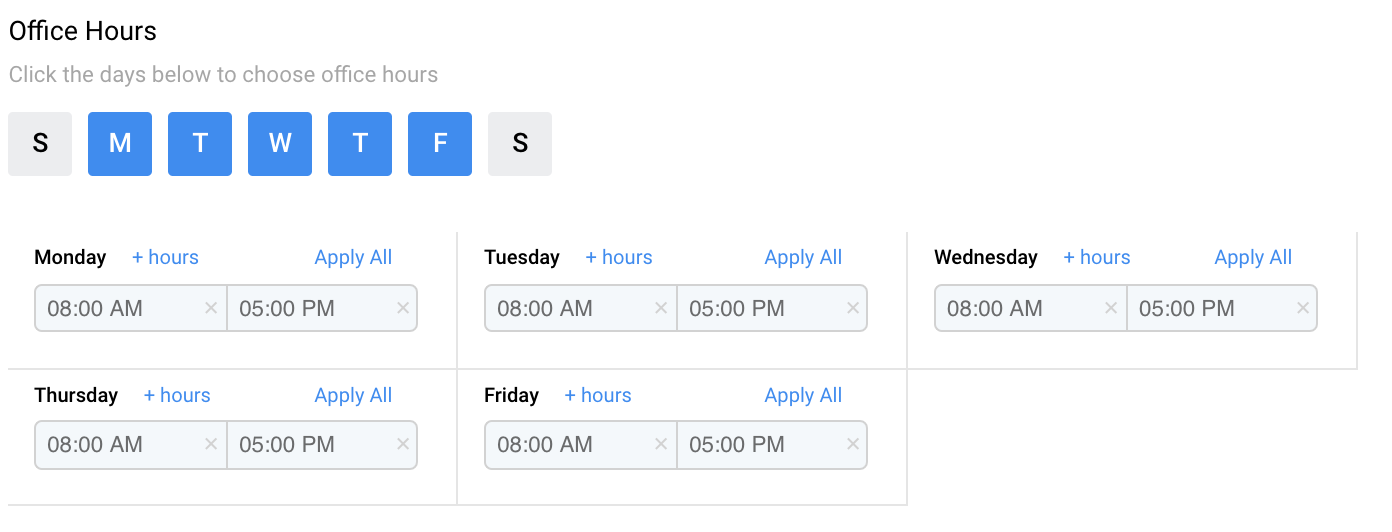
- Set your “Office Hours” by clicking On or Off the days of the week you wish to set hours for (blue means you have availability). Then, determine the hours for each day. Here we have Monday-Friday 8am-5pm set:
- Save and continue on to the next tab.
Step 4: Fill out Tab 3 - Confirmation
- Under “Form Settings”, you can choose a custom form if you’ve created one you want your contacts to fill out before their appointment/calendar booking.
- Sticky contact, when turned on, will remember the data the contact enters and pass that on to other forms, surveys, payment information it the funnel, etc. as they work through LANA.
- Stripe payment can be toggled on here if you wish to charge for the appointment.
- NOTE: You’ll need to have an integrated Stripe account; check out our other tutorials on that.
- Under “Notification & Additional Options” you can auto-confirm appointments, send an alert email, allow Google calendar to send an invitation or update emails to the attendees, enable rescheduling and cancellation, cancellation.
- NOTE: We do recommend that you update this custom value to be appointment.rescheduling and appointment.cancellation link if you plan to use these here or in campaigns.
- You can add a Facebook Pixel ID which will come through as a scheduled event.
- “Custom code” allows you to enter HTML or Javascript (not CSS) that you want loaded into the calendar.
- Fill out the “Form Submissions” section to determine if you want a customized ‘Thank You’ message, or if you want them to be redirected to a URL.
- Click “Complete” to save your changes.
Related Articles
How to Utilize the Calendar
Calendars are a useful way for managing appointments in your system. Before creating a calendar, you’ll want to ensure you have an understanding on unassigned vs. team calendars. Please refer to our tutorial “How to Create and Utilize Teams Within ...How to Create and Edit Pipelines
Using the Pipelines feature, you can more efficiently manage your leads for your business. This tutorial will show you how you can easily create a new pipeline, or make changes to existing ones. Step 1: Accessing the Pipelines page Navigate to ...How To Create and Edit Smart Lists
Smart Lists are a great way to organize contacts, by customizing filters to create 'lists' or categories of contacts. You may use as many filters as you like, completely customizing the experience, and how thoroughly filtered you want contacts to be. ...How to Create, Edit and Delete Custom Fields
Custom Fields allow you to create contact specific fields that contain specific information about that contact. These allow you to add to the Standard Fields and gather whatever type of information you require. Step 1: Create Custom Fields Navigate ...Outlook Calendar Integration
Outlook calendar integration is a great feature you can use with a Teams Calendar. This allows you to create and sync calendar invites for Outlook, and to sync back to LANA. NOTE: Only Outlook.com, Office365, live.com, and Hotmail calendars are ...