How to Create, Edit and Delete Custom Fields
Custom Fields allow you to create contact specific fields that contain specific information about that contact. These allow you to add to the Standard Fields and gather whatever type of information you require.
Step 1: Create Custom Fields
- Navigate to Settings > Custom Fields
- Click "+Add Custom Field"
- Choose from the Types of Custom Fields.

NOTE: Once you create a custom field, you cannot edit the field type. To change it, you will need to delete the field and create a new one.
Types of Fields:
- Text - One-line Textbox Field
- Large Text - Multi-line Textbox Field
- Numerical - Number Field
- Phone - Phone Number Field
- Monetary - Monetary Field
- Checkbox - Multi-option Checkbox Field (multiple options can be chosen)
- Single Options - Dropdown Option Field (only one option can be chosen)
- Multiple Option - Dropdown Option Field (multiple options can be chosen)
- Radio - Radio (circular) Button Option Field (only one option can be chosen)
- Date - Date Field
- Textbox List - Textbox List Field
- File Upload - Allows Files to be Uploaded (or required) with submission - Files allowed include PDF, DOC/DOCX, JPG/JPEG, PNG, GIF
- Signature - Signature Field
- Enter the Name of the Field.
- The Name of the Field is what you will see in the contact profile. This is also what will show on the form/survey if "Show Label" is enabled.
- Enter the Placeholder. Placeholder is what will show in the box (specifically for text or other manual entry fields) in a form/survey.
- Enter any other applicable information for the field


Step 2: Utilize Custom Fields
- Drag and Drop From the Custom Fields Section of Form or Survey Builder to utilize your custom fields.
NOTE: Custom Fields can also be created within the Form or Survey Builder. They cannot be edited (permanently) or deleted with in the Form or Survey Builder.
Step 3: Edit & Delete Custom Fields
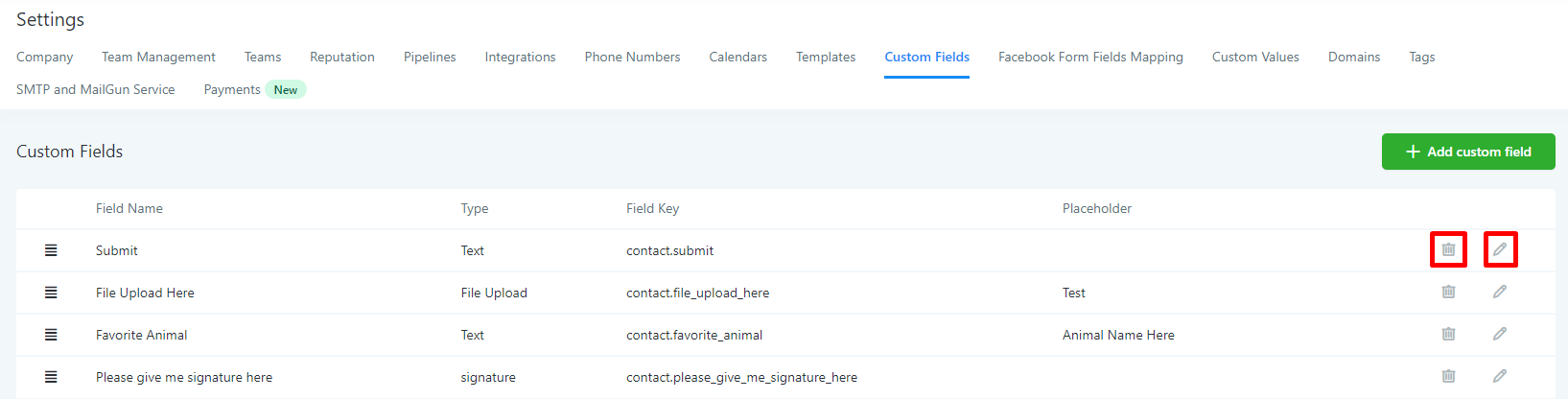
- To either Edit or Delete A Custom Field, navigate back to Settings > Custom Fields
- Click on the Pencil Icon to Edit a Custom Field
- Click on the Trash Can Icon to Delete a Custom Field
NOTE: You can also drag and drop the fields to reorder how they are seen in a contact profile under "Additional Info". Just click on the three horizontal lines on the far left side of each Custom Field and drop it in the order you want.
Related Articles
How to Create and Use Custom Values
Custom Values, or Merge Fields, are values you can put into a template that will auto-populate when generating communication with your contacts. They are a great way to save time and maximize LANA, by automating information so you can send out ...How to Create Custom Fields in Forms
This video explains how to add custom fields in forms and the types of custom fields available.Custom Values
This video explains how to create and edit custom values.How to Create and Edit Pipelines
Using the Pipelines feature, you can more efficiently manage your leads for your business. This tutorial will show you how you can easily create a new pipeline, or make changes to existing ones. Step 1: Accessing the Pipelines page Navigate to ...How To Create and Edit Smart Lists
Smart Lists are a great way to organize contacts, by customizing filters to create 'lists' or categories of contacts. You may use as many filters as you like, completely customizing the experience, and how thoroughly filtered you want contacts to be. ...