Customizing Funnel and Website Colors
Within the funnel or website builder, you can completely customize each step, including colors, fonts, and more. Follow these steps to learn how to customize the colors of your funnel or website, using a few different methods.
You can make overall Funnel/Website Settings by utilizing the Typography Settings to have consistency throughout your page. Or, you can customize individual funnel or website pages within the builder. You can also use Custom CSS if you are familiar with code.
Part 1: Updating the Overall Font Colors Using Typography Settings
Using the Typography tab allows you to ensure that all fonts are consistent throughout the funnel/website pages. When customizing the fonts, you can choose the specific color for text, links, and more.
- Navigate to the “Settings” button at the top of the builder.
- Click into Typography.

- Choose the native Headline and Content fonts that will be used throughout the funnel.

Part 2: Making Individual Page Edits
Each funnel/website page is composed of the following pieces: Sections, Rows, Columns and Elements. They need to be created in that order. Sections can house multiple rows, rows can house multiple columns and columns can house multiple elements.

Using the drag-and-drop builder, you can add sections, rows, columns and elements to the builder. Then, use the edit menu on the left hand side for each specific piece you’ve added to customize it to your exact liking.
Here are some examples of specific elements that colors can be customized within:
- Background and text color of a button


- Background color of a section

- Text colors for a headline or other text elements

Part 3: Using Custom CSS
If you have the expertise, using custom CSS allows you to completely customize the funnel/website beyond standard options. CSS, or Cascading Style Sheets, is the technology used by most websites to create visually engaging web pages, including aspects such as the layout, colors and fonts.
- Navigate to the “Settings” button at the top of the builder.
- Click into Custom CSS.
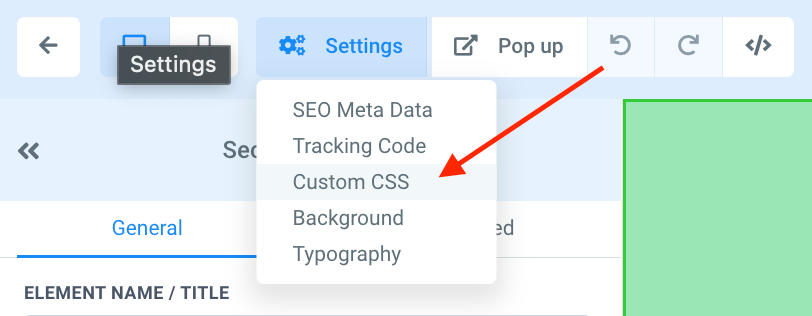
- Insert your custom CSS.

- Save to confirm your changes.
With any changes you make, using any option, you can preview the page to view it before you save and exit the builder.
Make sure to save any changes before you leave the builder to confirm the updates you've made.
Related Articles
Customizing Your Funnel and Website for Mobile and Desktop Views
One of the perks of the funnel builder is the ability to see and edit what the funnel looks like in desktop and mobile view. However, sometimes what looks best on one view does not look best on the other. The best solution to make sure that the ...Converting Funnel Steps and Website Pages Within LANA
If you want to convert or import a funnel or website page into a new funnel or website you are building, you can do so using the import feature. This will save you time and allow you to work efficiently in your Funnel and Website builders, so you ...How to Connect Your Domain to a Funnel or Website
In this tutorial, we’ll show you how you can add and attribute your domain to either a funnel or a website. This tutorial assumes you’ve already added domains to your account (if not, stop here and go check out our other tutorials on adding domains ...Funnel and Funnel Builder Overview
Here's an overview of the funnel section, as well as the funnel builder where you can customize your funnel steps/pages. Step 1: How to Navigate To and Utilize the Funnel Section Start by navigating to the Funnels section. You can a view a list of ...How to Change a Logo in the Funnel or Website Builder
Changing your logo is fast and easy in your funnel builder or website builder. There are two builder items where logos may be present: 1) in the navigation menu or 2) as a basic image. Follow these steps to change or update a logo image: Step 1: ...