Zoom Integration
The Zoom Integration feature allows you to generate unique meeting links for appointments within the Team Calendar section of LANA. (To learn more about setting up team calendars, check out our calendar tutorials.) If you yourself are your team, you can create a "Team" of 1 person for your team calendar. Follow these steps to learn how to Integrate your Zoom account.
Step 1: Integrating Zoom
- Navigate to Settings > Profile.
- Scroll down to "Integrations" and click Connect next to Zoom.
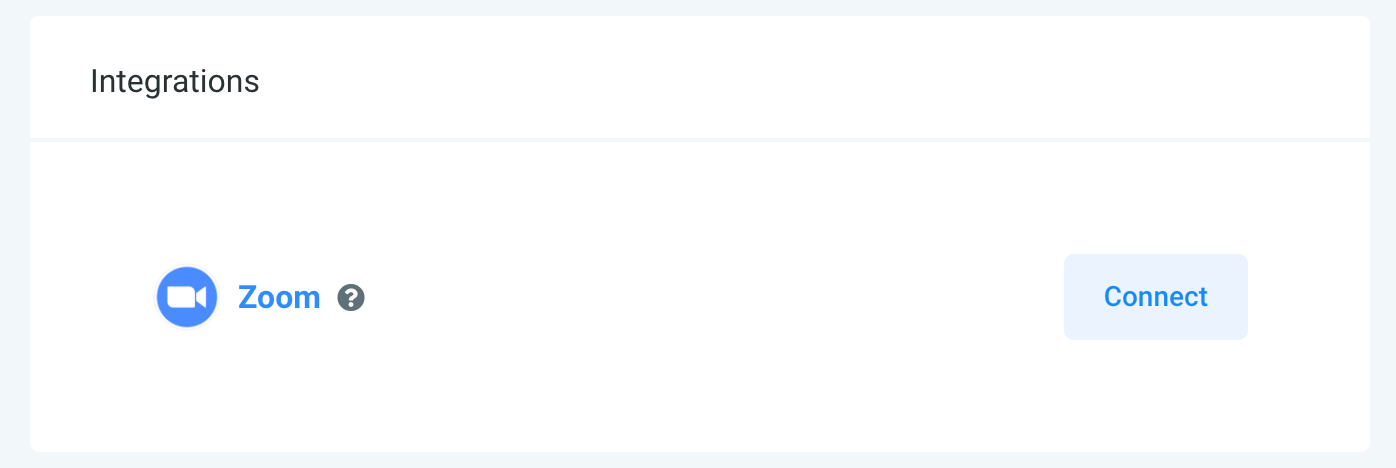
- This will direct you to the Zoom sign-in page. Enter your Zoom credentials to log in.

- Once logged into Zoom, you'll see the system access request. Be sure the pre-approval is complete (if not you can click to do so.)
- Then click Authorize to confirm the integration.

- Navigate back to Settings > Profile.
- Scroll down to "Integrations" and you'll see the blue "Connect" button is now red and says "Disconnect", confirming the integration was successfully completed.
Step 2: Setting Up Zoom Links For Your Calendars
OPTION A: You can set User Availability to default to using dynamic Zoom links for all bookings.
- Under "User Availability" choose "Connect Zoom" and click "OK" in the Confirmation window that pops up.

This will set up LAN to use dynamic Zoom links for all calendar bookings.
OPTION B: Setting Up The Team Calendars Individually
- Navigate to Settings > Calendars.
- Create (or edit) a calendar for the team your user is assigned to.
- In Part 1 of the Calendar Configuration "Team and Event Setup", choose the Zoom calendar from the dropdown for your user.
- Fill out the rest of the fields to create (or edit) the team calendar.
Step 3: Testing the Calendar
- Click into the Team Calendar you just saved.
- Book an appointment.
- Navigate to Scheduling > Calendar
- Filter to the appropriate calendar from the dropdown at the top, by choosing the appropriate team calendar in which you’ve booked the appointment.
- Click into the test appointment you created. The "Meeting ID" will show your Zoom link.
NOTE: If using a team calendar, you can see Zoom meetings scheduled within the CRM displayed in your Zoom account. In your Zoom account, navigate to "Upcoming Meetings" and you'll see them listed here.
Related Articles
Ascora x LANA Integration
A Seamless Guide to Integrating Ascora with LANA Introduction: Integrating Ascora with LANA streamlines your workflow, ensuring a seamless communication process between the two platforms. This guide walks you through the step-by-step process, from ...Outlook Calendar Integration
Outlook calendar integration is a great feature you can use with a Teams Calendar. This allows you to create and sync calendar invites for Outlook, and to sync back to LANA. NOTE: Only Outlook.com, Office365, live.com, and Hotmail calendars are ...Instagram Direct Messaging Integration
Instagram Direct Messages (DMs) are a great way to communicate with leads and contacts. Now you can integrate your Instagram account to LANA, to give you additional options for automating Triggers and communicating directly with leads in the ...Google Meet Calendar Integration
If you’d like to use Google Meet to connect virtually for appointments, check out this quick tutorial to get your account set up. You can simply integrate your Google account to LANA, and then set your User Availability for your meeting/appointment ...How to set up the NMI integration?
What does NMI have to offer? Some of the features offered by the NMI payment gateway include the following: Support for multiple currencies and payment methods: NMI supports various currencies and payment methods, allowing businesses to cater to a ...