Using the Bulk Action Features
Using the Bulk Actions features in your Contacts/Smart Lists section, you can perform multiple one-off actions to selected or all contacts. From sending an email or SMS to updating the pipeline stage and more, follow the steps below to learn how to use this feature.

Part 1: What Actions Are Available
- Pipeline Change: Add/Update the Opportunity for multiple Contacts. Choose a pipeline, stage, opportunity, lead value, and more.


- Add to Campaign/Workflow: Choose a campaign or workflow to bulk-add contacts into:


- Send SMS: Type out a one-time SMS or select from your templates.


- Send Email: Type out a one-time email or select from your templates.


- Add/Remove Tag: Apply or remove one or multiple tags from the selected contacts.


- Delete Contacts: Delete the selected contacts from your LANA account. Please note: deleting any contact will also remove them from Conversation, Notes, Opportunities, Tasks, Appointments, Manual Actions and Campaigns.


- Export Contacts: Export a list of selected contact records from LANA into a .csv file that will save to your computer.
- Import Contacts: Please refer to our article on How to Import Contacts for a full tutorial.


- Send Review Requests: Here you can send a review request to multiple contacts at once. (Be sure you have your “Reputation” section set up for reviews.)


- Merge Duplicate Contacts: Merge up to 10 duplicate contacts (Please refer to our article on merging duplicates for a full walk-through).


Part 2: How To Use The Actions
Step 1: Navigate to Contacts > Contacts/Smart Lists.
Step 2: Select the contact records you want to use a bulk action for. You can individually click through and select specific contacts, or you can check the box at the top to select all.
Step 3: Choose the action you want to apply.
Step 4: Follow the steps for the specific action in the pop-up window.
Part 3: View a list of your pending and current bulk actions in the Contact Request Page.
Step 1: Navigate to Contacts > Bulk Actions. Here you can view a list of all your pending Bulk Actions.
Step 2: Cancel or edit a pending action.
- You can cancel or edit a pending bulk action. You can also toggle to "Completed" in the top right to view a list of completed Bulk Actions in LANA.
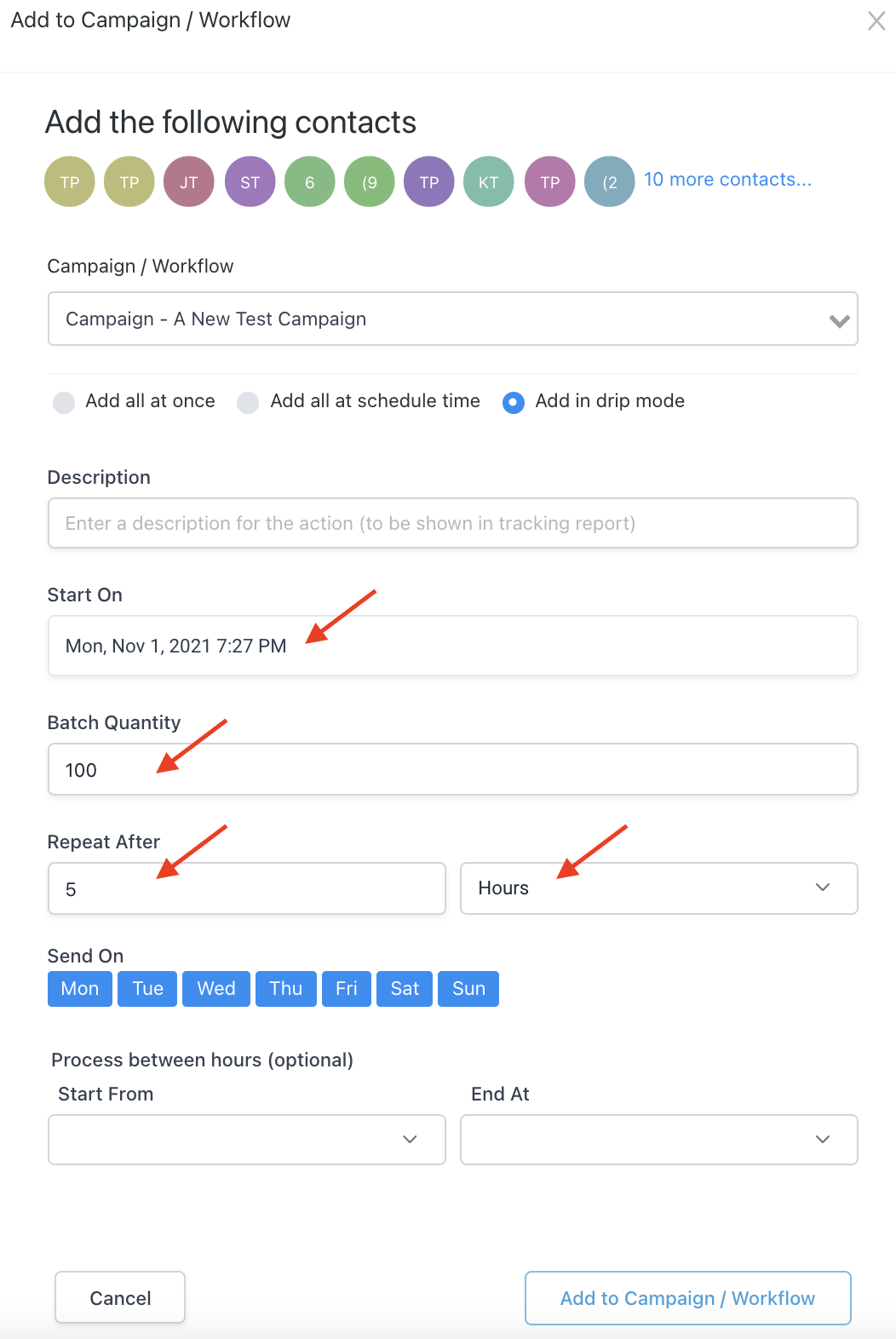
NOTE: When scheduling a bulk action in drip mode, the "repeat after" does not repeat the entire process. Instead, it can be viewed as "run every". As shown in the example below, 100 contacts would be processed per every 5 hours. This process would repeat until all selected contacts received the drip communication. (If you had 780 contacts selected, there would be a total of 8 batches – 7 x 100 and 1 x 80).
Related Articles
Using the Bulk Action Features
Using the Bulk Actions features in your Contacts/Smart Lists section, you can perform multiple one-off actions to selected or all contacts. From sending an email or SMS to updating the pipeline stage and more, follow the steps below to learn how to ...Bulk Actions - Email
Using the Bulk Actions features in your Contacts/Smart Lists section, you can perform multiple one-off actions to selected or all contacts. Here’s how to send contacts a one-off email using the bulk action feature: Step 1: Choose Your Contacts ...Bulk Actions - Deleting Contacts
Using the Bulk Actions features in your Contacts/Smart Lists section, you can perform multiple one-off actions to selected or all contacts. Here’s how to delete contacts using the bulk action feature: Step 1: Choose Your Contacts Navigate to your ...Bulk Actions - Pipeline Change
Using the Bulk Actions features in your Contacts/Smart Lists section, you can perform multiple one-off actions to selected or all contacts. Here’s how to do a pipeline change to add or update opportunity statuses, using the bulk action feature: Step ...Bulk Actions - SMS
Using the Bulk Actions features in your Contacts/Smart Lists section, you can perform multiple one-off actions to selected or all contacts. Here’s how to send contacts a one-off SMS using the bulk action feature: NOTE: You must have an outbound phone ...