Seamlessly Connect and Use Microsoft Teams for Dynamic Meetings in LANA Software
Overview
By connecting your Microsoft Teams account to LANA Software, you can automatically generate unique meeting links for each new booking, streamlining the setup process and reducing manual steps. When Microsoft Teams is selected as a meeting location in any calendar, a unique Teams link is created and sent along with the calendar invite.
Prerequisites
Ensure you have access to the Microsoft Teams account you wish to connect.
How to Connect Microsoft Team
You can connect your Microsoft Teams account through either:
- My Profile menu under Settings
- Calendars menu under Settings
Connecting from “My Profile”:
- Go to Settings > My Profile.
- Under Video Conferencing Connections, click Add New.
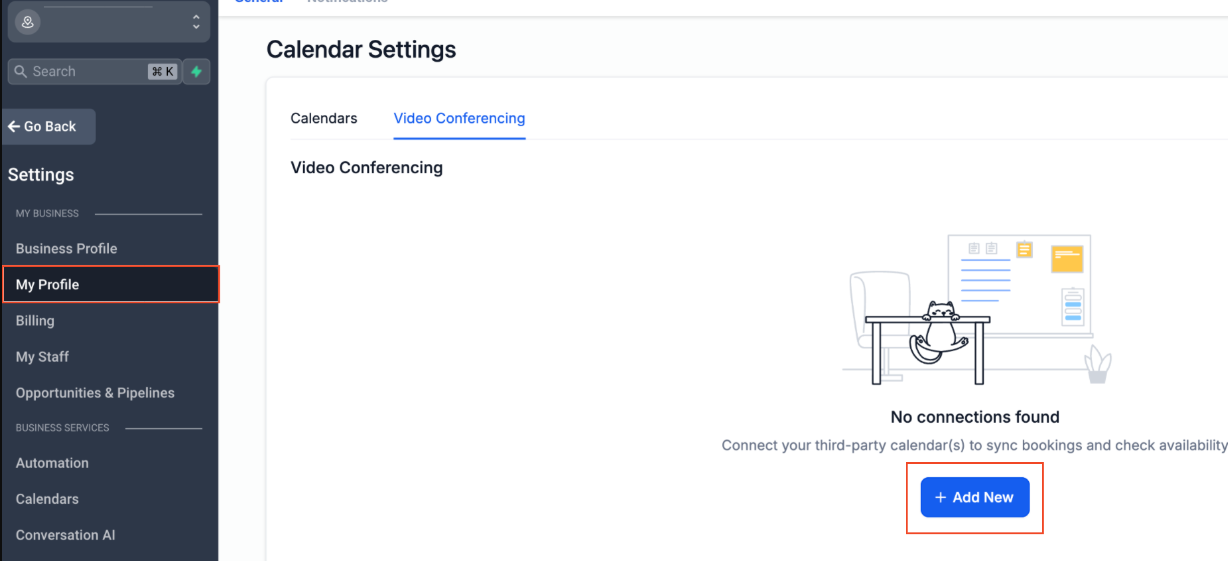
- Select Microsoft Teams and click Connect.
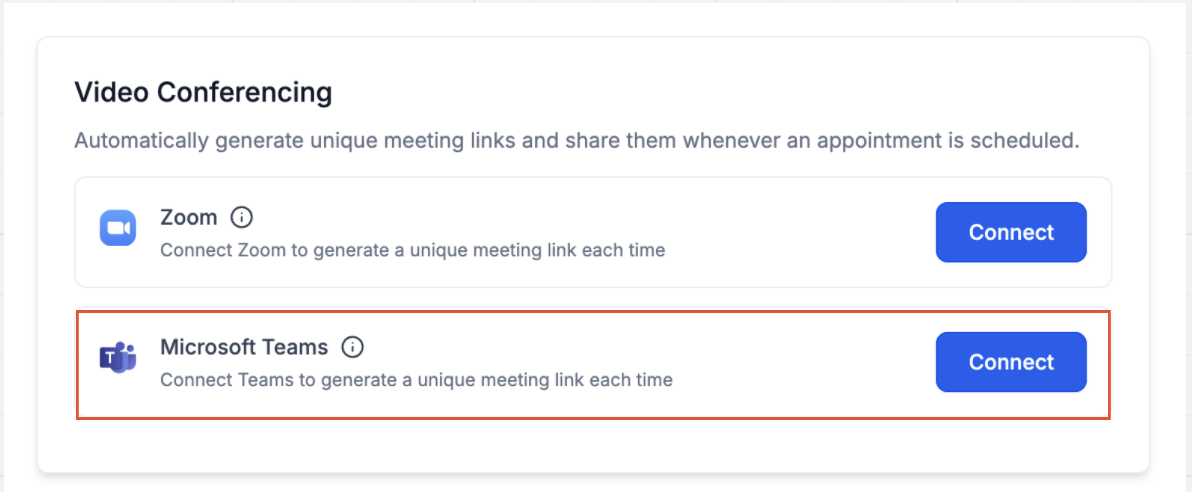
- Sign in with your Microsoft Teams credentials.
- Your Microsoft Teams account is now successfully connected.

Connecting from “Calendars”:
- Go to Calendars > Calendar Settings > Connections.
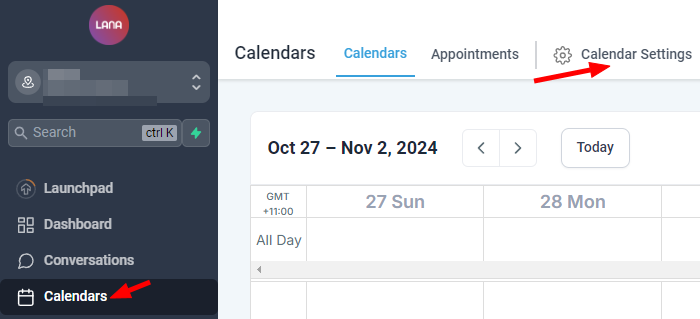
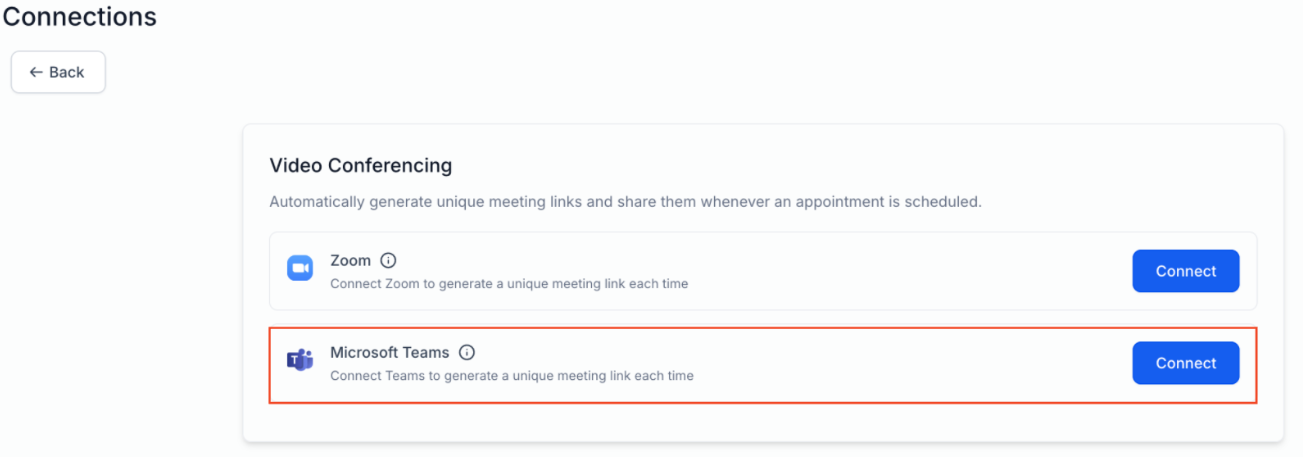
- Navigate to the Video Conferencing tab.
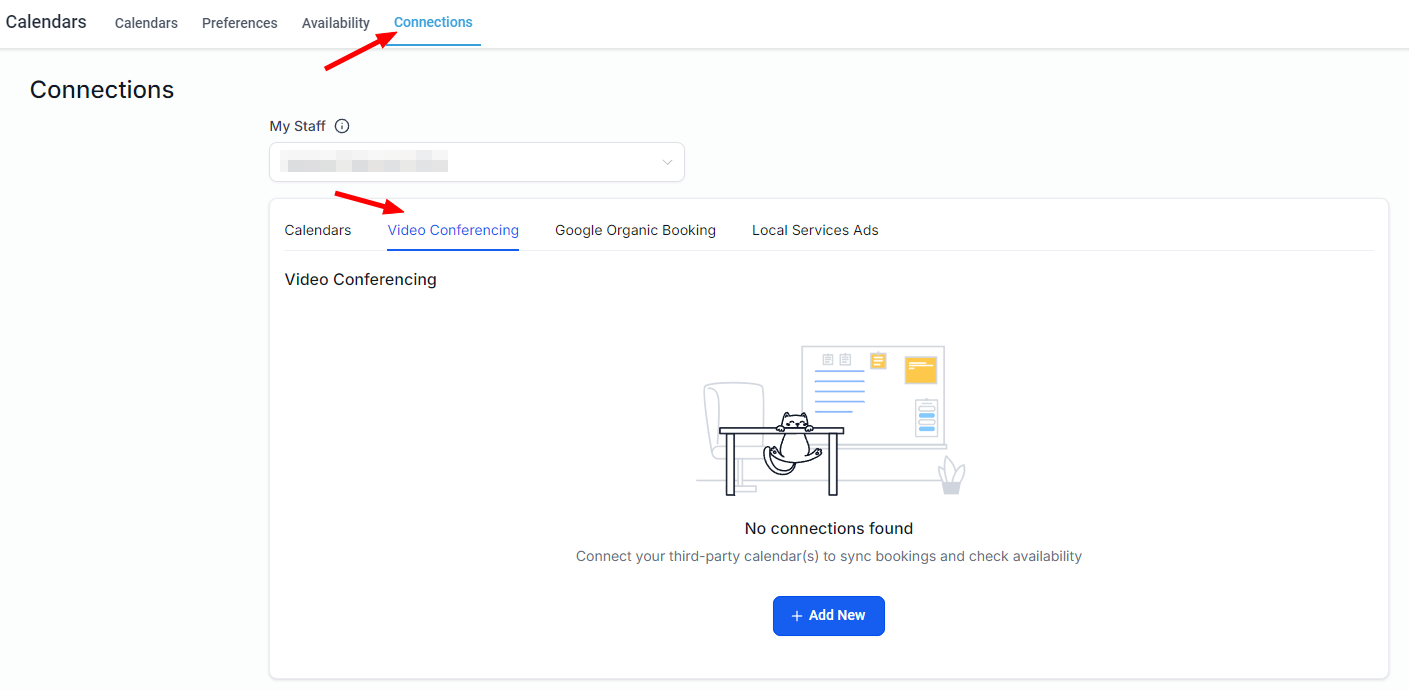
- Click Add New and select Connect next to Microsoft Teams.
- Sign in with your Microsoft Teams credentials.

- Your Teams account is now successfully connected.
Adding Microsoft Teams Links to Your Calendar
- Verify that Microsoft Teams integration is successfully connected.
- Navigate to Calendar Settings and select the calendar you wish to modify.
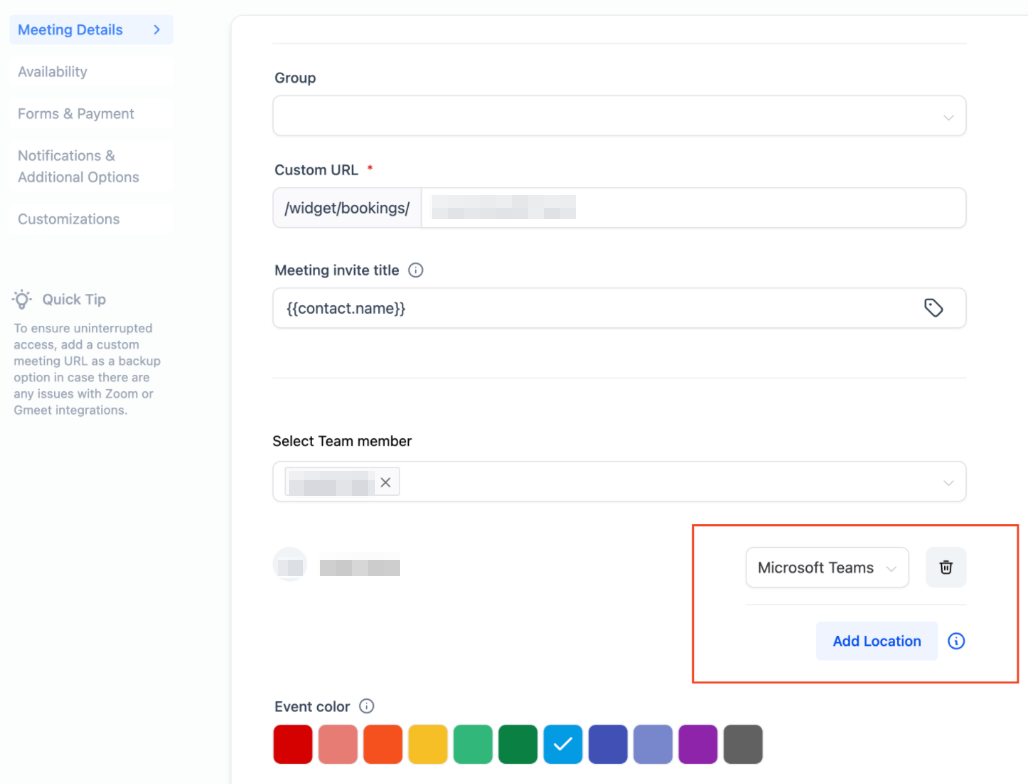
- Under Meeting Details, scroll to the Team Members section.
- Choose the team member, confirm they have connected Microsoft Teams, then select Microsoft Teams as the meeting location and save.
Important Notes
- Separate Connection Required: Connecting an Outlook calendar does not automatically link Microsoft Teams; connect Teams separately under Calendar Connections > Video Conferencing.
- Outlook Integration: To view appointments on your Outlook calendar, connect and select the preferred Outlook calendar under Calendar Connections > Calendars.
Limitations with Microsoft Teams Integration
- Only Work and School (Organization and Education) Microsoft Teams accounts are eligible for integration.
- Each user can connect only one Microsoft Teams integration per subaccount.
- The same integration may be used across multiple subaccounts, but only for the same user.
FAQs
Q: Which Calendars Support Dynamic Microsoft Teams Links?
A: Microsoft Teams integration is available for Personal Booking, Round Robin, Collective, and Service Calendars. Class Booking Calendars will support this feature soon.
Q: How Can I Use Microsoft Teams with Event Calendars?
A: Generate a Teams link manually, then select Custom as the meeting location in calendar settings and paste the link. Note that this will use the same link for all future bookings.
This update streamlines virtual meetings, enhancing efficiency and flexibility within LANA Software. For further assistance, please contact to support@lana.software.
Related Articles
LANA: My Profile Overview
My Profile Overview This section in LANA Software allows you to personalize and manage key profile details, ensuring that your information and preferences are always up to date. Personal Information Name, Email, and Phone Number: Update essential ...Ascora x LANA Integration
A Seamless Guide to Integrating Ascora with LANA Introduction: Integrating Ascora with LANA streamlines your workflow, ensuring a seamless communication process between the two platforms. This guide walks you through the step-by-step process, from ...Manage Multiple Facebook Pages with LANA Software's New Integration Feature
Connect Multiple Facebook Pages to Your LANA Software Account We’re excited to announce one of our most highly anticipated integration features: connecting multiple Facebook pages within your LANA Software account! This powerful update lets you ...New Feature: Choose Your Sending Number for SMS Messages in LANA Software Conversations
New Update: Selecting a Phone Number for SMS Messages in LANA Software Conversations This update introduces more control over selecting phone numbers when sending SMS messages in LANA Software’s Conversations module. You can now choose the most ...Call Connect
Call Connect in LANA: An Overview Call Connect is an innovative workflow feature in LANA designed to streamline lead follow-up. It allows your workflow to automatically dial your LANA phone number while simultaneously connecting to the customer. This ...