Integrating with Shopify
Integrating Shopify with your LANA account is a 2 step process:
- Create a Custom App in your Shopify Store
- Connect Shopify to your Account
Step-1: Create a Custom App in your Shopify Store
Before we setup integration we need to create a custom app in your Shopify store.
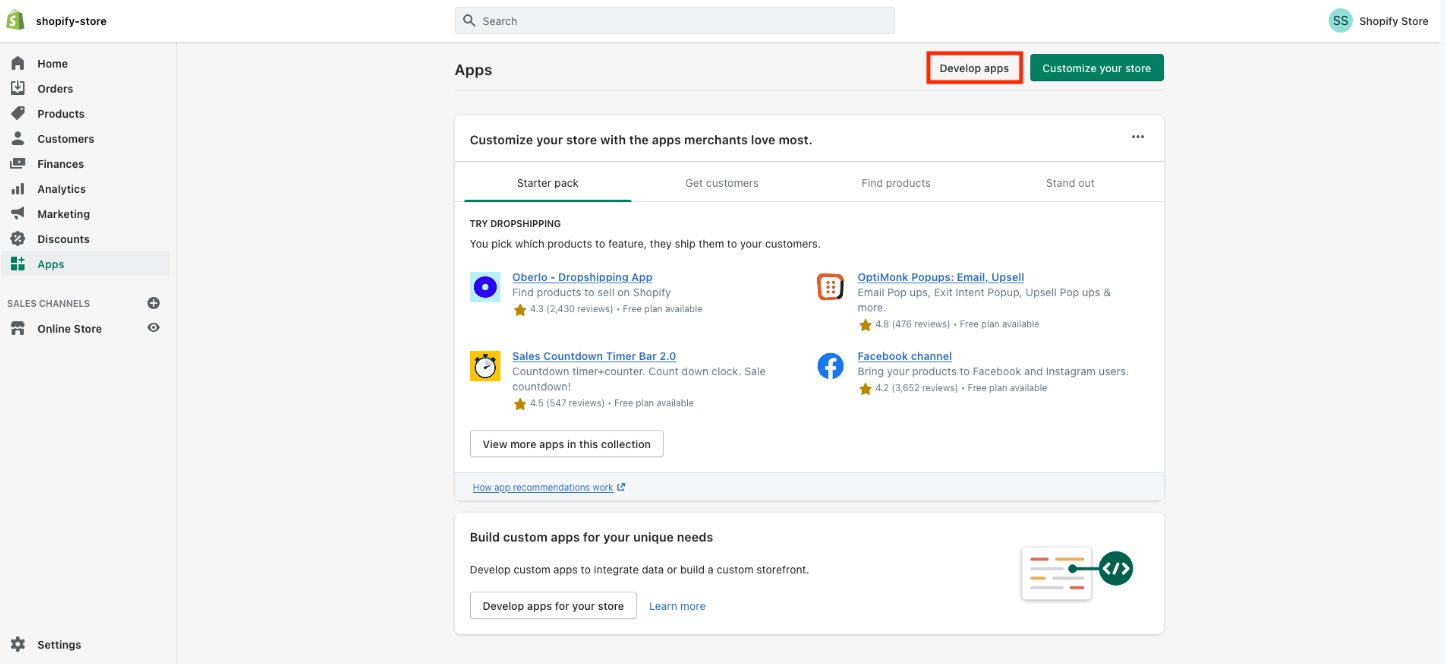
1.1 Login to your Shopify store and click on "Apps" in your dashboard

1.2 Then, click on "Develop apps" on the top of the screen highlighted in the below picture
1.3 Then, click on "Allow custom app development" (if you have already enabled this permission
then Shopify will take you to Step-1.5)
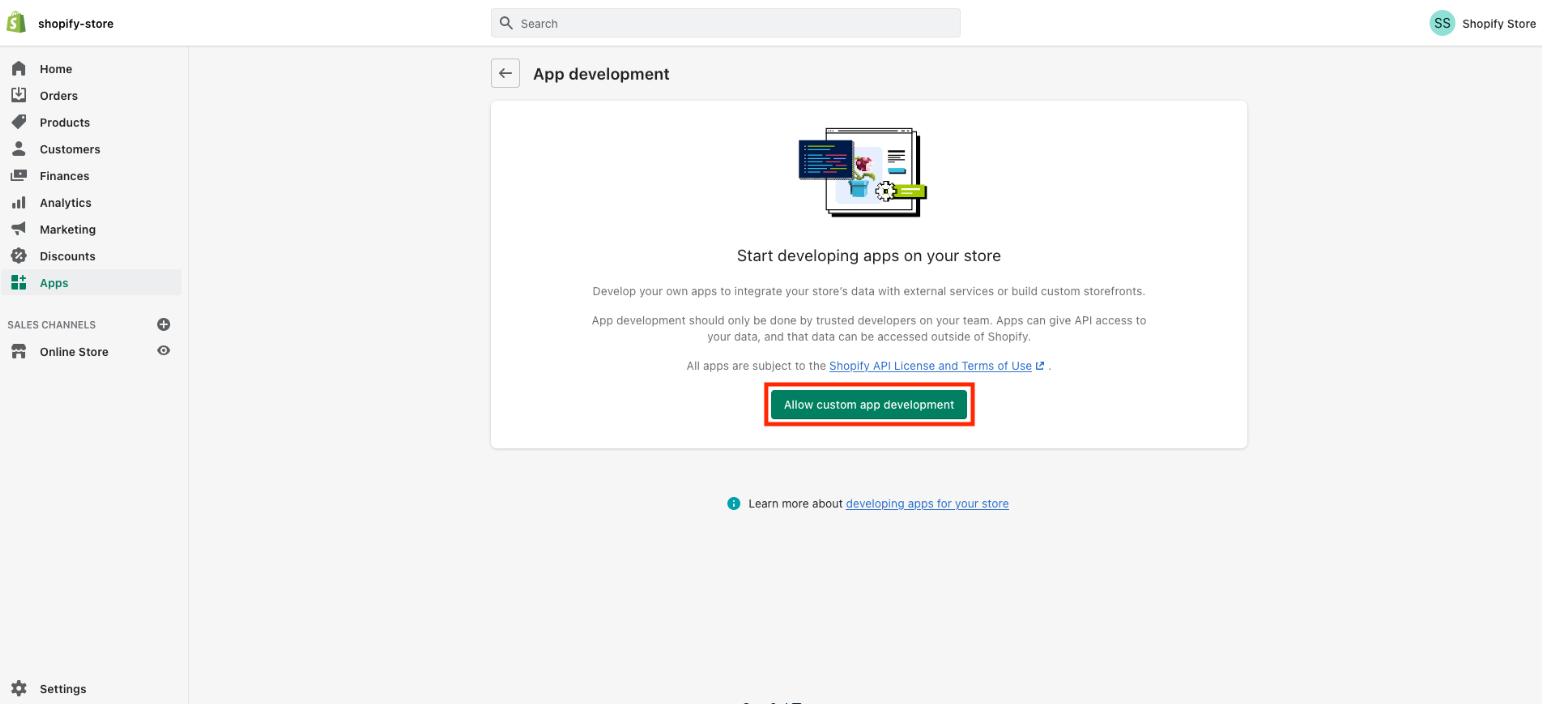
1.4 In the next screen, click on "Allow custom app development"

1.5 Then, click on "Create an app"

1.6 Enter a name for the app (for example "Marvel's App"), select your email under App
developer and click on "Create app"

1.7 Then, click on "Configure Admin API scopes" to configure Admin API integration

1.8 Search/scroll down to the "Orders" and You will need to enable at the very least
"read_orders" access
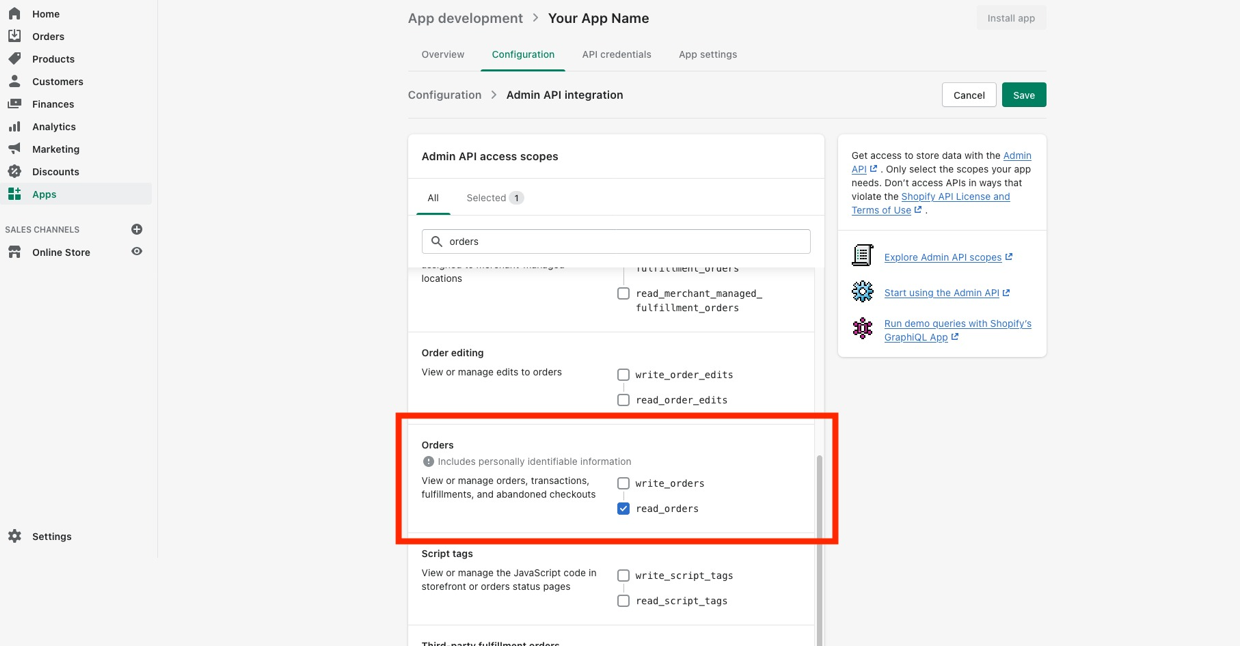
1.9 Then, Search/scroll down to the "Products" and You will need to enable at the very least "read_products" access

1.10 Once you've enabled read access on "Orders and Product", save the app by clicking on the "Save" button on the
top right

1.11 After saving click on the "Install app" as in the image below

1.12 Then, click on "Install" from the pop up as in the image below

1.13 After installing, the "Admin API access token" that you need for the Shopify integration can be found under the API credentials section, click on "Reveal token once" to get access to the token

1.14 Copy the "Admin API access token" by clicking on the clipboard icon

Step-2: Connect Shopify to your Account
2.1 In your Account go to Settings > Integrations and click on "Connect" under Shopify

2.2 Paste the "Admin API access token" you copied in Step-1.14, enter "Name of your Shopify
store" and click "Connect"

2.3 Your Shopify integration is done

Related Articles
Integrating with Google
Integrating with Google allows you to sync your calendar to your Google Calendar as well as for reporting related to Google Ads. Step 1: Go to Settings > Integrations Step 2: Click “Connect” Under the Google Icon Step 3: Select the account you wish ...Ascora x LANA Integration
A Seamless Guide to Integrating Ascora with LANA Introduction: Integrating Ascora with LANA streamlines your workflow, ensuring a seamless communication process between the two platforms. This guide walks you through the step-by-step process, from ...Multiple Facebook Page Integration for Reviews
Review Management: Multiple Facebook Page Integration for Reviews! Managing your social media reviews is now simpler than ever! Our latest update allows you to integrate multiple Facebook pages into one platform, streamlining your review management ...How to Integrate and Use Paypal
By integrating Paypal as a merchant processing application to LANA, you’ll be able to process payments for products and services right within LANA. This will help you manage your business and allow you to track transactions right within the Payments ...List of Workflow Triggers
Within the Workflow Builder you can have one or multiple triggers to fire off the workflow’s series of actions. Below is a complete list of workflow trigger options: Appointments Appointment Status: runs on all appointment status updates Customer ...