How To Update Cancellation and Reschedule Links For Your Calendar
Having your calendar set up properly ensures your clients can book appointments with you so you maximize your business opportunities. Sometimes, your clients need to be able to reschedule or cancel an appointment. You want to ensure it is easy to do so, to prevent no-shows. Here, we'll share how to ensure your reschedule and cancellation links are ready to go and easy to use when needed.
Step 1: Update the custom values within the calendar.
- Under Settings, navigate to Calendars.
- Click the … next to the Calendar you've already created and wish to edit. Select Edit from the dropdown menu.
- In the popup, in Tab 3 “Confirmation”, scroll down to “Additional Notes”. You can customize the message, and be sure to update the custom values to the following:
- Reschedule: {{appointment.reschedule_link}}
- Cancellation: {{appointment.cancellation_link}}
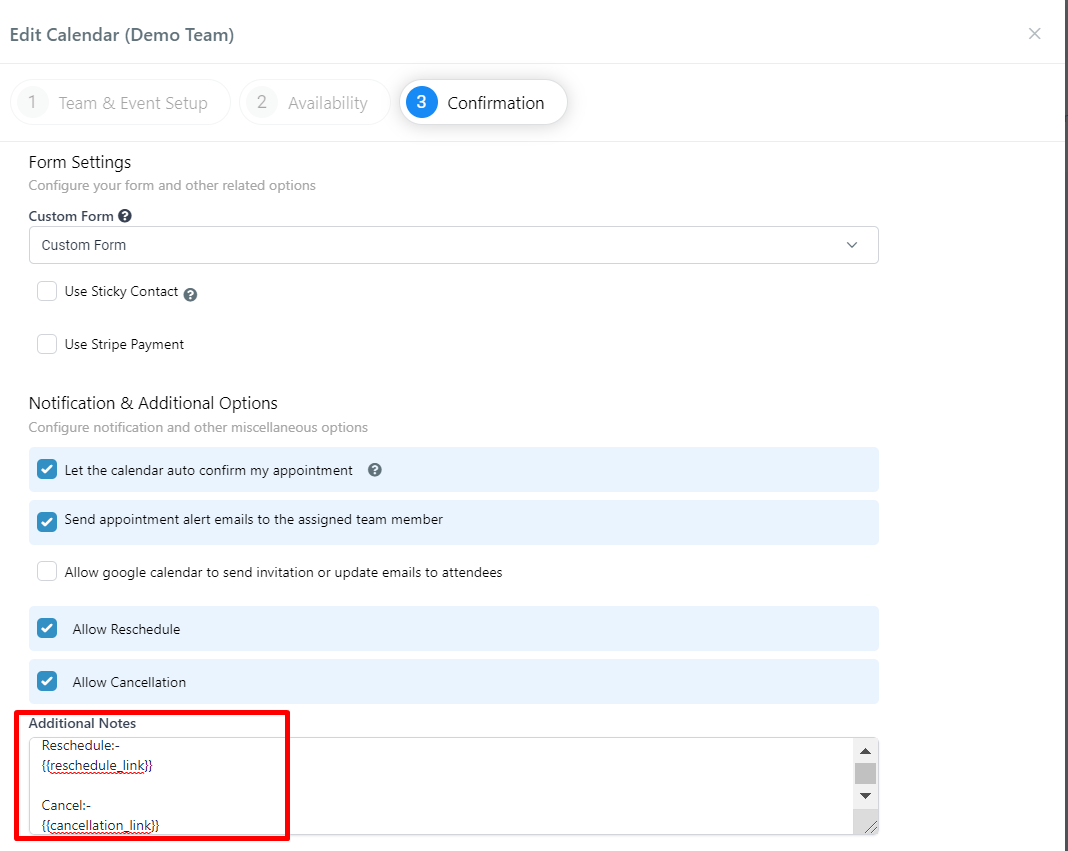
- Save to confirm your changes.
Step 2: Update the custom values within a confirmation/reminders campaign. If you want to give a lead the option to reschedule or cancel within a confirmation and reminder campaign, you can use those same custom values in the campaign.
- Set up a trigger based on an appointment being booked (for example, within the Appointment Confirmation and Reminders Campaign) that pushes the lead into the Appointment Confirmation and Reminder campaign.

- You can see that the custom values are in the triggered SMS response.
- NOTE: These custom values will only function if the campaign is fired via a "Appointment Booked" trigger.
- Under Campaigns, click "Appointment Confirmations and Reminders" and ensure you have the correct custom values set up for the SMS.
- Reschedule: {{appointment.reschedule_link}}
- Cancellation: {{appointment.cancellation_link}}


- In the campaign, click into the contact and scroll down in the messages where you'll see the reschedule and cancellation link. You can click into the cancellation link, and see the text field for "cancellation reason", which shows the link is working.
- Make sure to save any campaign changes, and activate the campaign in order for it to run.
Related Articles
How to Utilize the Calendar
Calendars are a useful way for managing appointments in your system. Before creating a calendar, you’ll want to ensure you have an understanding on unassigned vs. team calendars. Please refer to our tutorial “How to Create and Utilize Teams Within ...How to set up a Calendar for Classes?
Class Calendars are designed to manage one-to-many events where multiple invitees can attend a single booking. These calendars are ideal for webinars, workshops, training sessions, and sports events. In a Class Calendar, there can only be one ...How to Create and Edit an Unassigned Calendar
This is an overview on how to create and edit your 'unassigned' calendars (or non-team calendars). Step 1: Create a New Calendar or Edit an existing Calendar Navigate to Calendars Click on +New Calendar to add a new calendar OR click the … next to an ...LANA Update: simPRO V2.0
simPRO Version 2.0 Integration with LANA Software 1. Enhanced Communication Features Messaging Capabilities: Users can now send messages directly to three key contact types within LANA, enabling seamless communication throughout the project ...Outlook Calendar Integration
Outlook calendar integration is a great feature you can use with a Teams Calendar. This allows you to create and sync calendar invites for Outlook, and to sync back to LANA. NOTE: Only Outlook.com, Office365, live.com, and Hotmail calendars are ...