How to customise your opportunity card view.
Opportunity Card Customization: Personalize Your Pipeline View
We’re thrilled to announce the new Opportunity Card Customization feature! With this update, you can personalize the fields displayed on opportunity cards in the pipeline view. Customize up to 7 fields, adjust counters, and choose between two layout options to optimize your workflow and streamline how you manage opportunities.
What’s New?
- Field Customization
Select up to 7 fields—both standard and custom—to display on your Opportunity Cards. Options include key details like Opportunity Name, Status, Value, and Contact Information, allowing you to tailor the card to show the most relevant information for your team. - Pipeline-Level Customization
Customize cards at the pipeline level, with the flexibility to apply changes across all pipelines if you manage multiple ones within your location. - Customizable Quick Actions
Add customized icons for quick access to Conversations, Tasks, Notes, Tags, Calls, and Appointments, helping you keep track of these key actions directly from the Opportunity Card. - Two Layout Options
Choose between:
- Default View: Displays field labels and values for easy readability.
- Compact View: Shows only values with labels on hover, optimizing space by allowing up to two values per row. - Real-Time Preview
A real-time preview shows you how your card will look as you make changes, letting you visualize your layout and make adjustments instantly.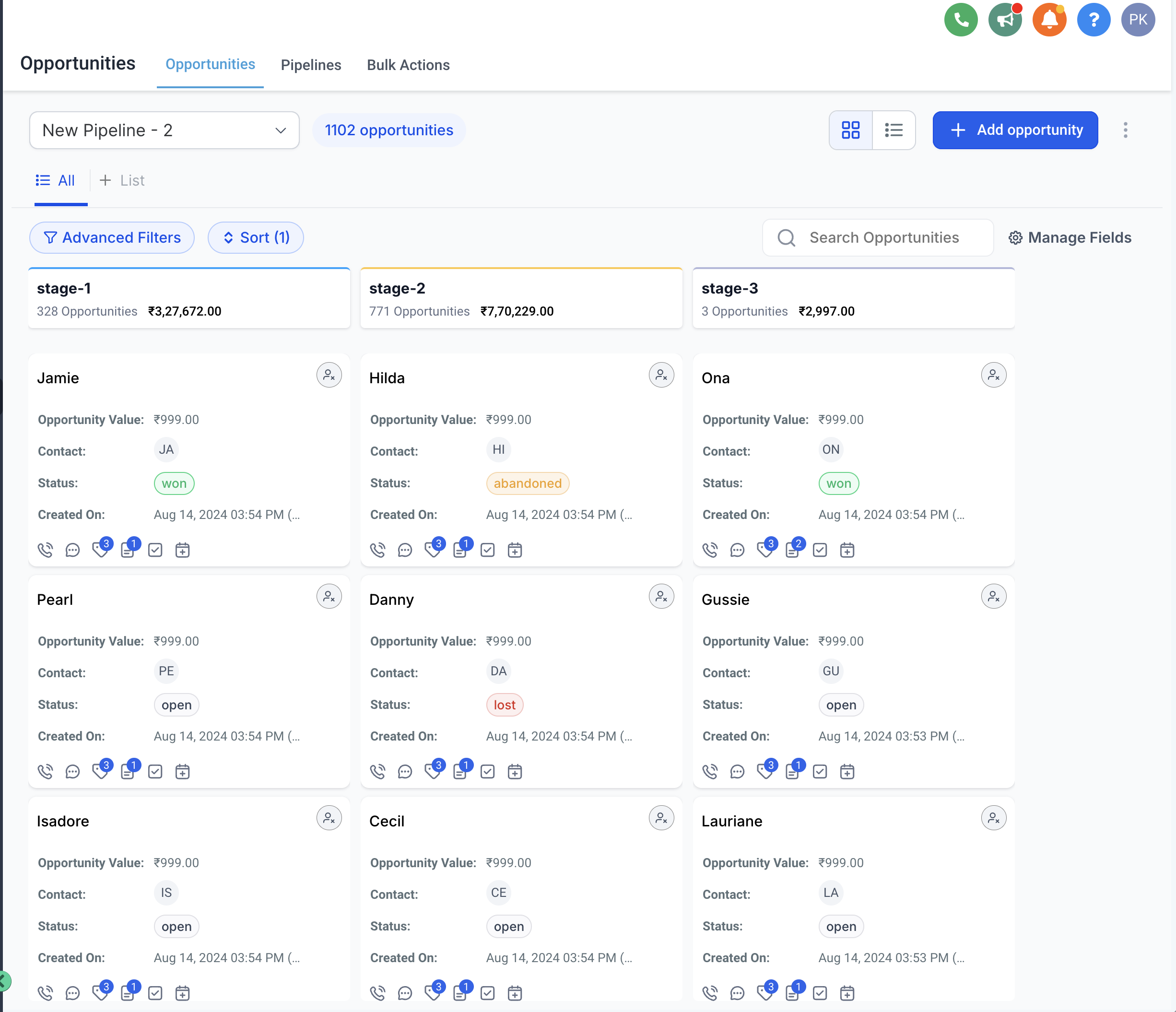

How to Use Opportunity Card Customization
1. Open Opportunities and Access Customization
Go to the Opportunities section, then click on Manage Fields to start customizing your cards.
2. Select Fields and Customize Counters
Choose up to 7 fields from standard, custom, or associated fields to display on the card. Personalize quick-action icons for Conversations, Tasks, Notes, Tags, Calls, and Appointments.
3. Choose Your Layout
Select either the Default View or Compact View, depending on your needs and preferences.
4. Save Your Changes
After finalizing your selections, save the customizations. You can also apply the same configuration across all pipelines if desired. By customizing your Opportunity Cards, you’ll have all essential information right at your fingertips, making your pipeline management more efficient and visually organized.

Related Articles
Opportunity Card View - UPDATE
A new unlabeled card layout for opportunity pipelines enhances data density and customization options. This compact design allows users to manage large pipelines more efficiently by displaying essential information in a streamlined format. Users can ...Updating an Opportunity
In this video discusses how to update opportunity information including accessing the opportunity card, adding and removing tags, editing the opportunity name, change opportunity pipeline, adding and updating appointments, adding tasks and notes and ...Customise Your Chat Widget
This video explains how to edit or customise your chat widget.How to End an Opportunity
Depending on the situation, if an Opportunity isn't going to work out or close, you may want to delete or archive the Opportunity. There are multiple ways to do this. Part 1: Update Opportunity Status. You can update the Opportunity status if it ...How to Customize the Navigation Bar in Your Funnel's Mobile View
You can customize the navigation bar for your funnel or website's mobile view. Step 1: Choosing the Mobile background color Navigate to the funnel builder Add a navigation bar using the drag-and-drop funnel (or website) builder. With the navigation ...