Google Analytics 4 Tracking
Google Analytics 4 (GA4) is the latest version of the Google Analytics platform that provides a more advanced and comprehensive view of user behavior across different platforms and devices. It offers cross-device tracking, machine learning-powered insights, and enhanced event-tracking capabilities.
Concerning our CRM, the recent enhancement to track GA4 events with the measurement-id and API secret means that users of our CRM can now easily use GA4 tracking with their CRM accounts. This will allow them to track and analyze user behavior and engagement across different channels, including their website, mobile app, and social media platforms.
Steps to set up Google Analytics 4 in Workflows
The existing workflow action for Google Analytics in the CRM includes both Google Analytics 4 and Universal Analytics, which means that users can choose to use either platform or both to track their marketing campaigns and website traffic. This provides a more flexible and integrated approach to tracking and analyzing user behavior, which can help businesses make data-driven decisions to improve their marketing strategies and user experience.
Create or use an existing Google Analytics Workflow
In your Google Analytics Workflow, select the action 'Add to Google Analytics.'
A new dropdown value under 'Action Type' has been introduced by the name 'Google Analytics 4'; select this from the dropdown.

Get a Measurement ID from your Google Analytics Data Stream
Go to your Google Analytics account and fetch the measurement-id from Admin ➝ Account Settings ➝ Data Stream ➝ Select the Data Stream. (Please refer to Google help documentation on how to Set up Google Analytics if you do not have it set up.)


Copy the Measurement ID for your desired Data Stream:

Paste the Measurement ID in the Measurement ID field of your Google Analytics Action in your workflow.

Create a Google Analytics event that you want to track
You can Add the event name that you wish to track. This event name will show up under the Google Analytics dashboard along with other standard events that are set up.
Get an API Secret Value from your Data Stream
Add the API secret by navigating to your Google Analytics account Admin ➝ Account Settings ➝ Data Stream ➝ Select the Data Stream ➝ Measurement Protocol API secrets.


Please Note:
Before an API Secret can be created you need to acknowledge that you have completed the necessary privacy discussions adn right from your end users for the collection and processing of data.
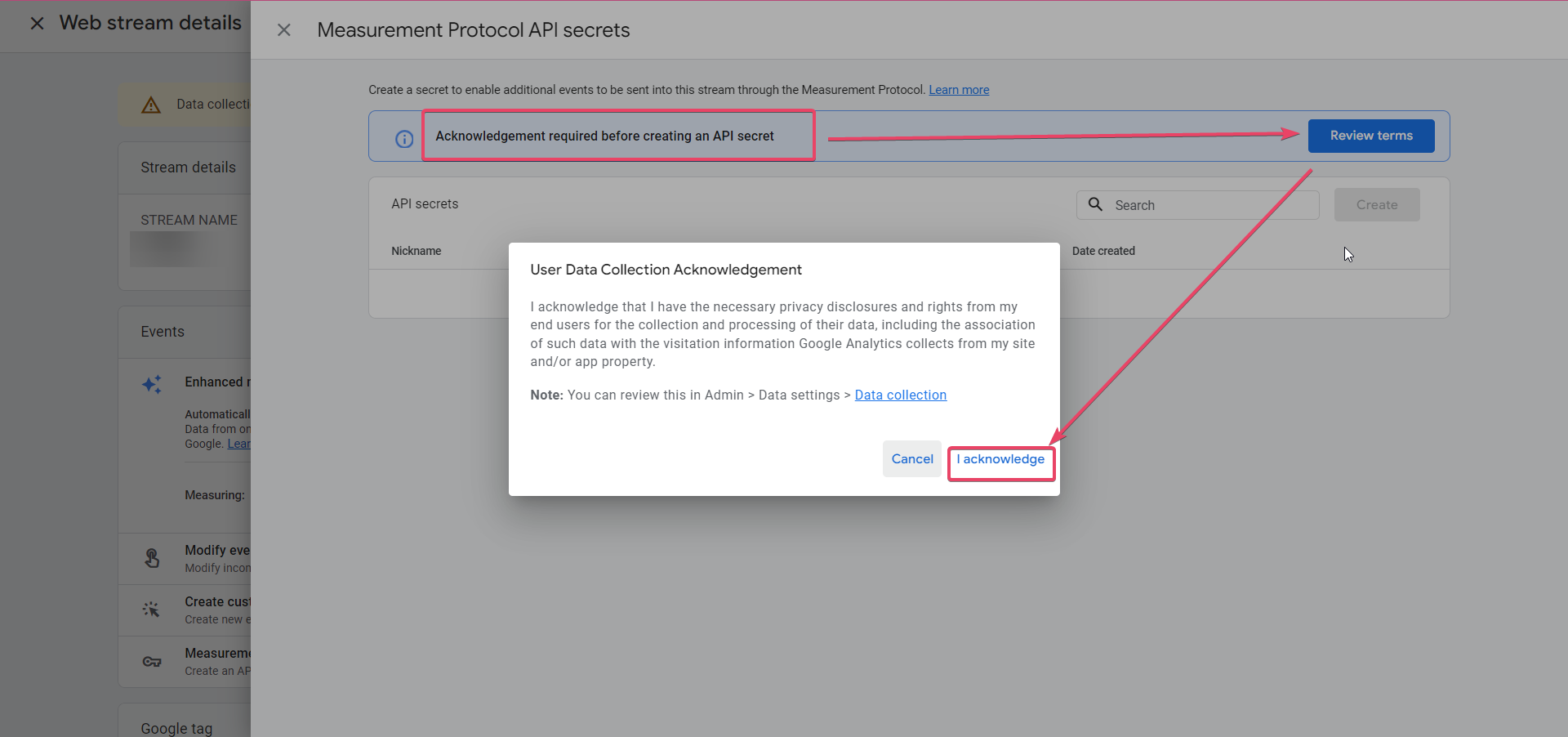
Then click on Create if no API Secret has already been created.

Name your API secret and then hit Create, and a Secret Value will be generated for it automatically.
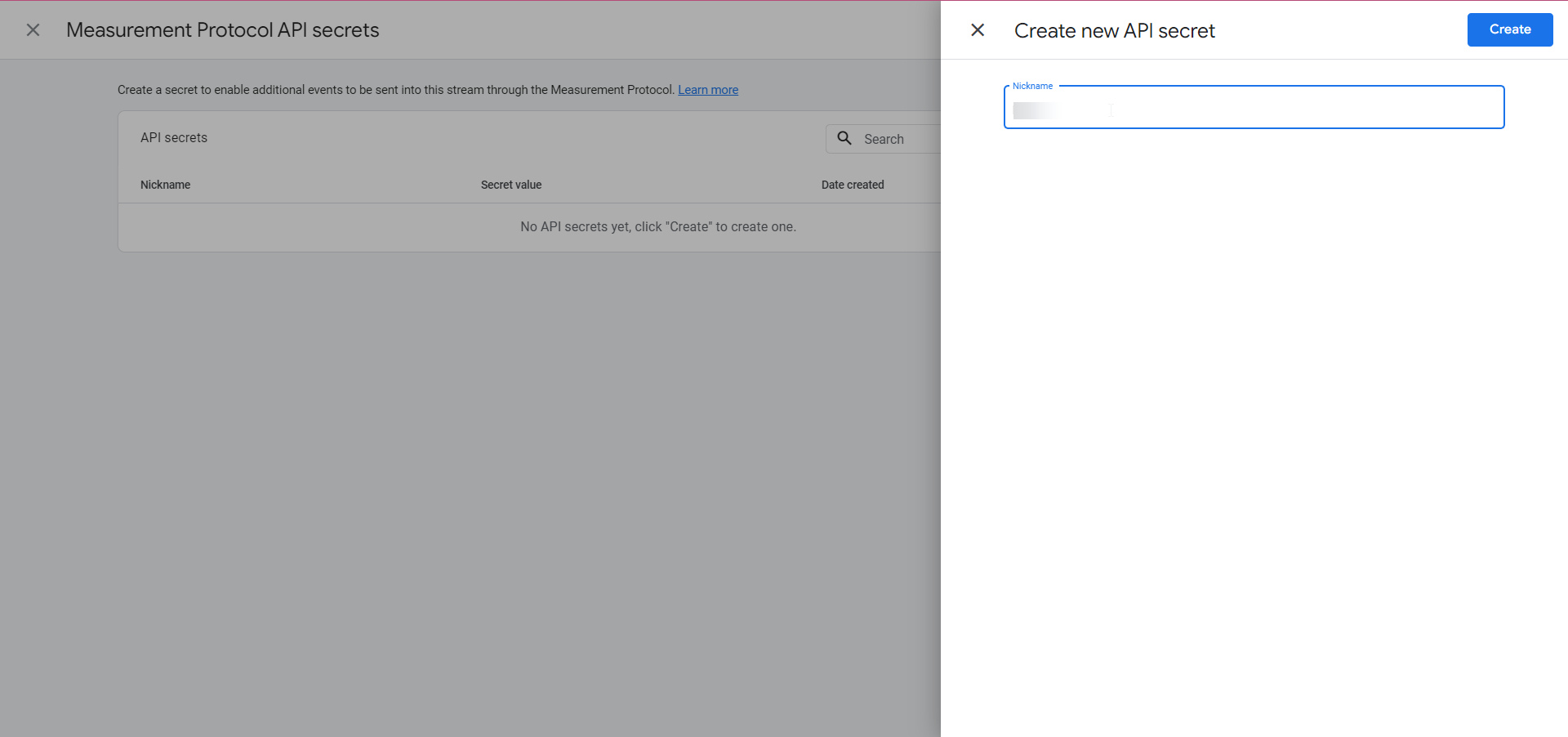

Copy the Secret Value from here and paste it into the API Secret field in the Google Analytics action in your Workflow.
Please Note:
Make sure there is no space before or after when you paste your API Secret value into the workflow's field or your Google Analytics action will fail.

Save Action and then Save the Workflow. Publish if you are ready to use it.
Related Articles
Google Analytics 4 Tracking
Google Analytics 4 (GA4) is the latest version of the Google Analytics platform that provides a more advanced and comprehensive view of user behavior across different platforms and devices. It offers cross-device tracking, machine learning-powered ...Integrating with Google
Integrating with Google allows you to sync your calendar to your Google Calendar as well as for reporting related to Google Ads. Step 1: Go to Settings > Integrations Step 2: Click “Connect” Under the Google Icon Step 3: Select the account you wish ...Social Planner Analytics Update
Social Planner Analytics Update We’re thrilled to introduce enhanced analytics for your Facebook and Instagram accounts in our latest platform update! Now, you can gain deeper insights into your social media performance across various key metrics. ...Call Tracking and Missed Call Text Back for Google My Business
Google My Business (GMB) allows a business to register two phone numbers. This allows you to track calls generated from GMB listings without a negative impact on your SEO (in other words: moving the business's real phone number to the secondary slot ...Connecting Multiple Google Business (GMB)
Seamlessly connect one or multiple Google Business Profile pages to a sub-account. By connecting multiple pages, you gain the ability to view, track, and monitor all related assets, such as messages, leads, and reviews, within a single sub-account. ...