Connecting Your Instagram Business Account to the Social Planner Social Media Tool
You can connect an Instagram business account to use in the Social Planner Social Media Tool. With this feature, you can manage your social accounts for Instagram, Google My Business (GMB), and Facebook all in one place. You can save time by scheduling posts, and also learn what your social media audience thinks by viewing the various statistics available.
Follow these steps to connect your Instagram Business account today:
Step 1: Ensure you have an Instagram business profile. If your Instagram account is a personal profile, you will need to switch it.
- Click or Tap the 3-line menu in the top right corner of your Instagram profile.
- Tap the settings icon.
NOTE: within some accounts, the "Switch to Professional Account" option will be listed directly under the Settings icon.
- Click Account > Switch to Professional Account > Continue.
- Choose a Category for your business.
- Tap Done > OK to confirm.
- Tap Business > Next > Add Contact Details > Next.
- NOTE: You may also select “Don’t use my contact info” to skip this step.
- The next step will allow you to connect your Instagram business profile to a Facebook page associated with your business. This is an option step that can make it easier to use all of the available features across the Meta family of apps.
- Tap X on the top right corner to return to your Instagram profile.
Step 2: Connect Your Instagram Profile to the Social Planner Tool
- Navigate to the Social Planner.
- Upon first visiting the Social Planner, there will be a wizard with a Connect option that looks like this:

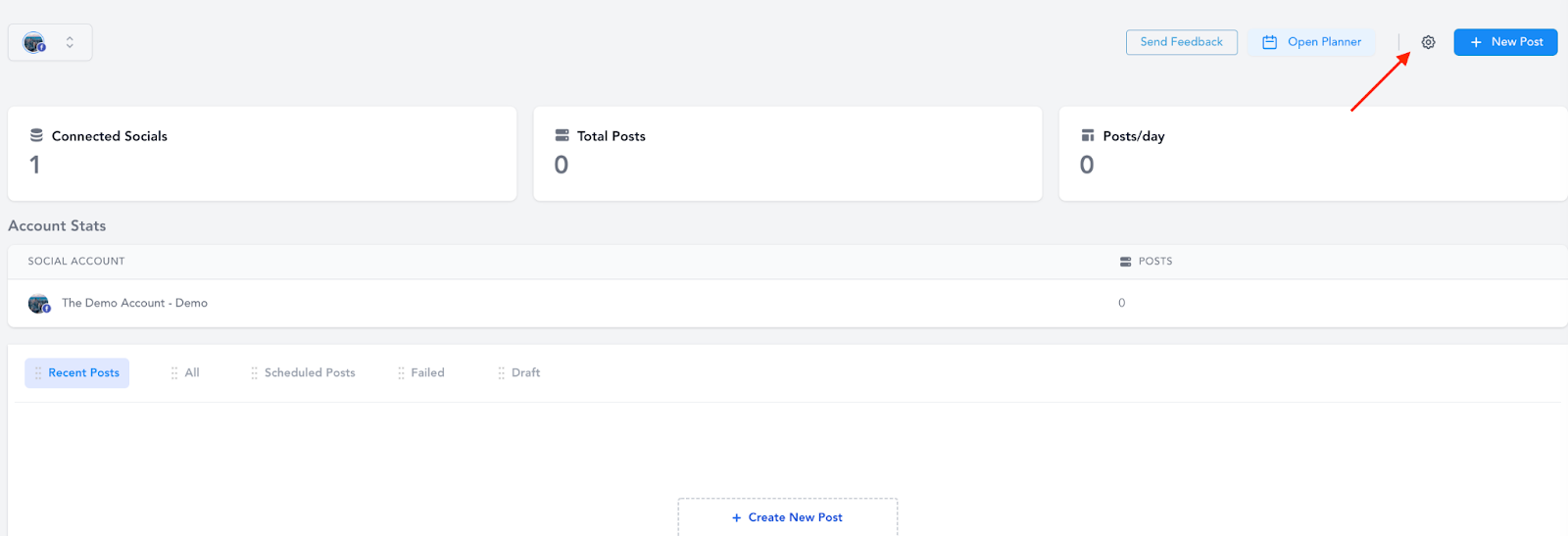
- After visiting the social planner the initial time, you can access the Settings via the gear icon in the top right to make additional changes and add/remove accounts.
- Click to connect an Instagram Business profile account.

- In the popup window, you’ll be asked to choose Facebook and provide the permissions for the Social Planner to access the connected Instagram page. Use your Facebook account that has an Instagram Business account connected with it, type in the details, and click on “Log In to Facebook” to proceed.

- Select the Instagram Business Profile(s) you want to add to Social Planner.

- NOTE: If the Instagram Business Profile is not verified, this means that the Instagram Business Account isn’t connected to a Facebook page. This is required by Facebook in order to post.
- Once connected, you can manage the Instagram account within the Social Planner to schedule posts and more!
Related Articles
How to Connect to Your Google My Business Page for Use in the Social Planner
The Social Planner tool allows you to connect multiple social media accounts and manage them in one area. By connecting your Google My Business (GMB), you can use the Social Planner to schedule, create, and push out posts to your Google My Business ...Using the Social Planner Social Media Tool
Use our Social Planner social media tool to keep all your social media managed in one spot. With this feature, you can manage your social accounts, save time by scheduling posts, and learn what your social media audience thinks. Follow these steps to ...Creating Posts in the Social Planner Social Media Tool
Within the Social Planner tool for managing your social media, you can create posts to share across one or multiple accounts. You can send the posts off immediately, or schedule them to post at a later date and time. NOTE: that you need to integrate ...Setting Up Email Notifications for Expired Social Media Accounts in the Social Planner
The Social Planner is where you can host your social accounts such as GMB, LinkedIn, Facebook, and Instagram. Each social account has a ‘token’ which maintains its integration to LANA. Various platforms have ranging token expiration dates - for ...How to Connect to Your Facebook Page for Use in the Social Planner
The Social Planner tool allows you to connect multiple social media accounts and manage them in one area. By connecting Facebook pages, you can use the Social Planner to schedule, create, and push out posts to your Facebook pages, along with Facebook ...