Bulk Actions - Sending Review Requests
Using the Bulk Actions features in your Contacts/Smart Lists section, you can perform multiple one-off actions to selected or all contacts. Here’s how to send review requests using the bulk action feature:
Step 1: Choose Your Contacts
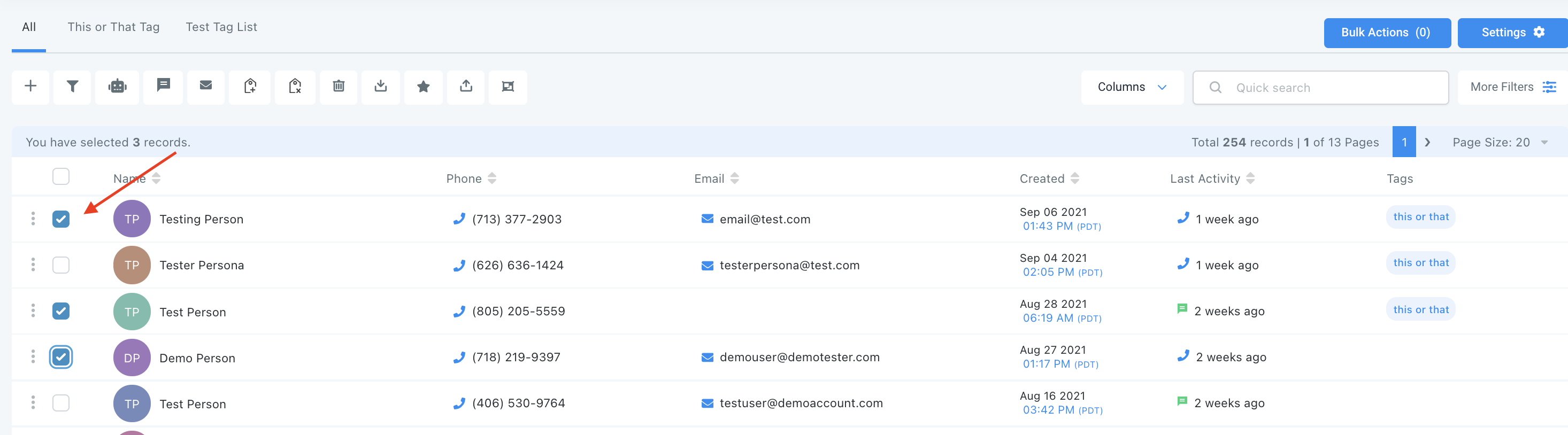
- Navigate to your contacts.
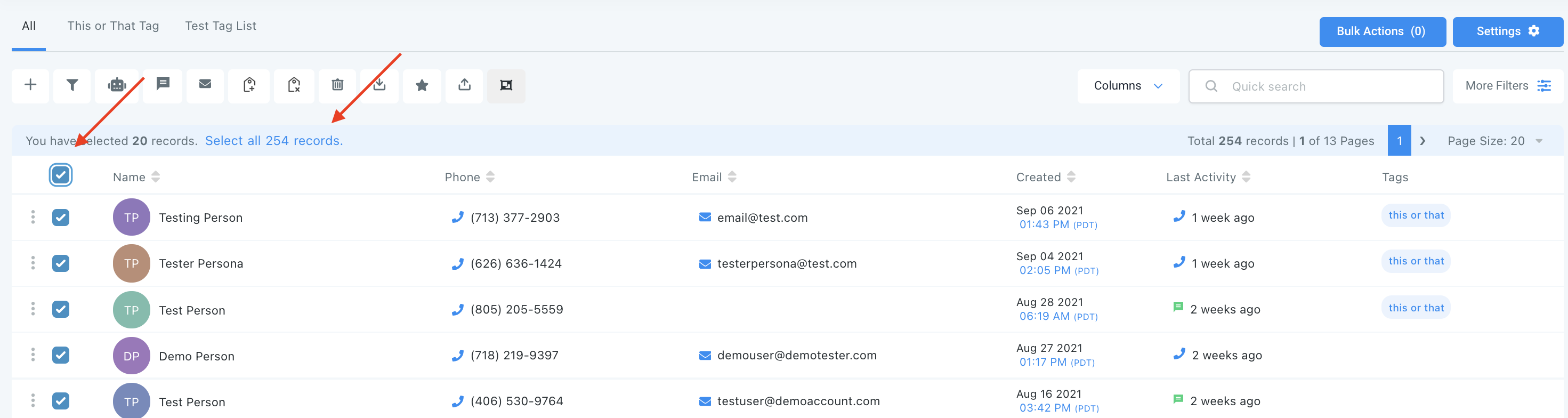
- Check the box to select contact records.
- You can also check the box at the top to select all on that page, and you can click the hyperlink to select all contacts in LANA.
Step 2: Choose Your Action
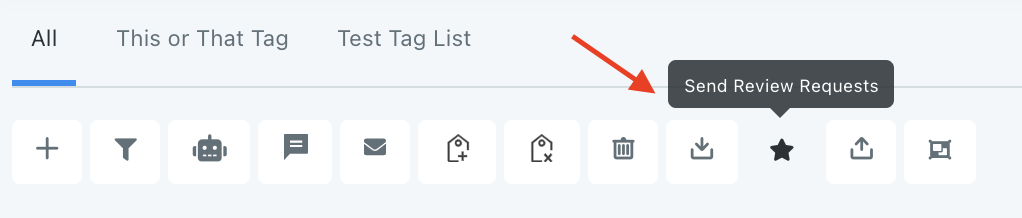
- Choose the icon for “Send Review Request”.
- In the pop-up window that appears, select either the email or SMS template from the dropdown list.
- Then choose the scheduling for this action. You can choose “add all at once” to process the action immediately, “add all at scheduled time” to process the action at one time in the future, or “add in drip mode” to process in groups/batches.
NOTE: When scheduling a bulk action in drip mode, the "repeat after" does not repeat the entire process. Instead, it can be viewed as "run every". As shown in the example below, 100 contacts would be processed per every 5 hours. This process would repeat until all selected contacts received the drip communication. (If you had 780 contacts selected, there would be a total of 8 batches – 7 x 100 and 1 x 80).

Related Articles
Using the Bulk Action Features
Using the Bulk Actions features in your Contacts/Smart Lists section, you can perform multiple one-off actions to selected or all contacts. From sending an email or SMS to updating the pipeline stage and more, follow the steps below to learn how to ...Using the Bulk Action Features
Using the Bulk Actions features in your Contacts/Smart Lists section, you can perform multiple one-off actions to selected or all contacts. From sending an email or SMS to updating the pipeline stage and more, follow the steps below to learn how to ...Bulk Actions
This video discusses the bulk actions menu in the contacts area.Editing Pending and Processing Bulk Actions
Using the Bulk Actions feature in your Contacts section, you can perform multiple one-off actions to selected or all contacts. From a SMS blast, to bulk adding contacts to a campaign or workflow, to sending out a drip email, and more, there are many ...How to Set Up LANA to Capture Reviews
In this article, you will learn how to set up LANA with Google to capture reviews. This will help you gather information about your business, what to improve, and if your contacts/leads were satisfied with the services that your business provides. ...