How To Create An Invoice
Using the Products within LANA, you can create and send invoices to your customers and clients. This will allow you to streamline the processing of your payments, to ensure you capture your money for your business. Follow the steps below to learn how:
Part 1: Creating and Sending an Invoice
Step 1: Create an Invoice
- Navigate to Payments and click into the Invoice tab.
- Click +New to start creating your invoice.
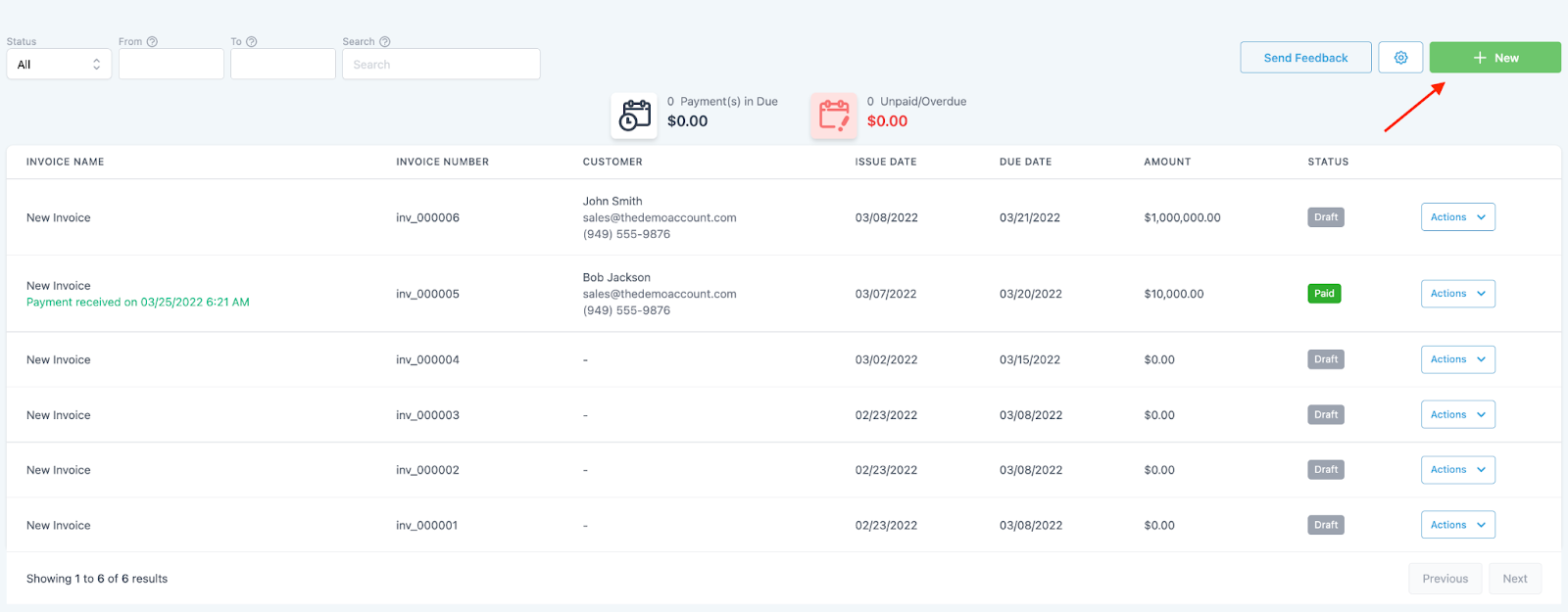
NOTE: You may add generic notes for the invoice using the gear icon right before the "New" button.
Step 2: Edit Your Invoice
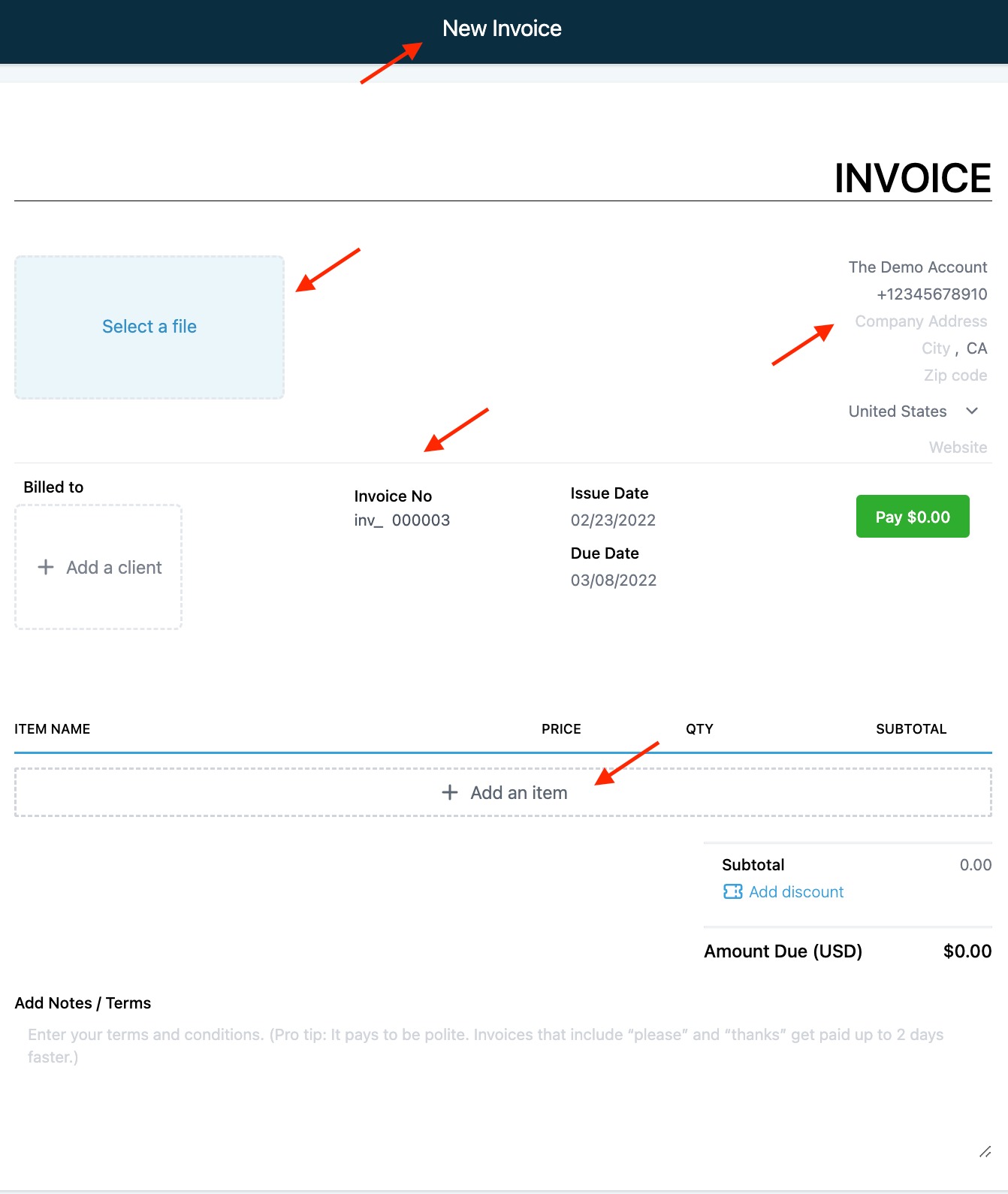
- Edit the image in the top left by clicking on it. This will open the media library where you may choose an existing image or upload a new image.
- Edit the “from info” in the top right by clicking on the text so you can update that information accordingly.
- Add the client/customer’s details under “Billed to” by clicking into the box under the section.
- Click into the Invoice Number, Issue Date, and Due Date to update and make changes to each section.
- Click “+Add an item” to add products from your products tab for the invoice.
- NOTE: the product already needs to have been created in order to be included on an invoice. If you need to set up a new product, checkout our other tutorials on products.
- Click into the Price and Quantity sections to update and make changes to each, as needed.
Step 3: Sending Your Invoice
- Once you create the invoice, you can send it using the green button in the top right corner.
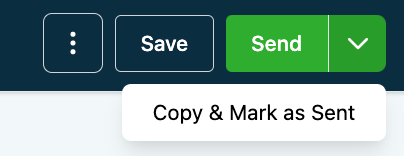
- You can also “Copy and Mark as Sent” if you wish to send it using a different means.
- When you click “Send”, a popup window will appear, and you may choose to send the invoice via email and text, or just one of the two methods.
- Under “Additional Options” you can change the payment mode between test/live.
Step 4: Checking The Status of an Invoice
- Navigate to your Invoices tab and you’ll see a list of all your invoices.
- Under the “Status” tab you can view the various statuses such as draft, paid, or due in X days.
- You can also search and filter by status and date range(s).
- Invoices can also be found in the Transaction tab.
- NOTE: Successful or Failed transactions will be visible under Payments > Transactions.
Part 2: Invoice Pro Tips
How To Add Taxes to Your Invoice
- Click “Tax Settings”
- Click “Add Tax”
- Add the name of the Tax, the rate (in percentage form), a description, and/or Tax ID number in the popup window.
How To Add a Discount to Your Invoice
- Click the “add discount” icon to include a discount on your invoice.
How To Record Payments
- Within an Invoice, choose the three-dot menu and drop down the options.
- Select “Record Payment”.
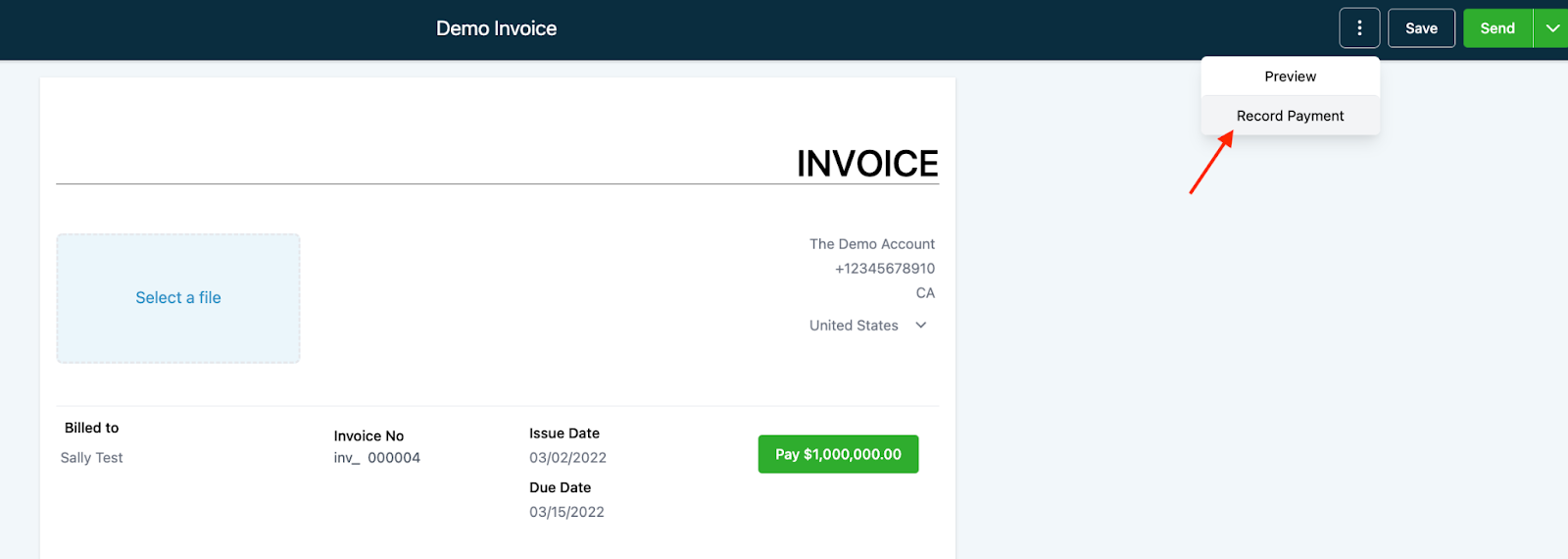
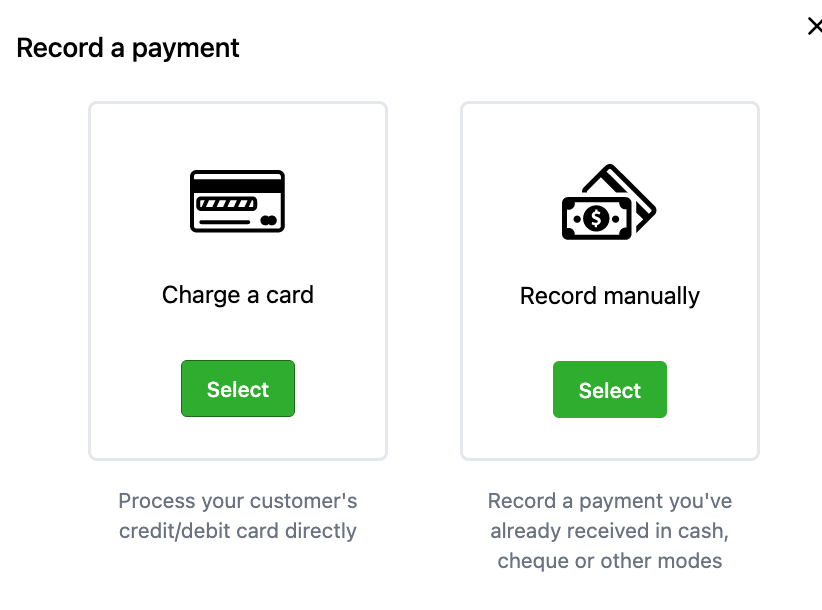
- A popup will appear with two options:
- Charge a card: add card information (which you can save to a contact) and charge that card on file, or charge a card already on file for the client
- Record manually: use this option to record a payment you’ve captured outside LANA, such as cash or check
Related Articles
How to Create and Use Workflows
This is an overview of the workflow builder. The workflow builder is a visual builder feature that allows you to combine trigger and campaign type features with some added functionality. Step 1: Access the Workflow Dashboard Navigate to workflows, ...How to Create and Edit Pipelines
Using the Pipelines feature, you can more efficiently manage your leads for your business. This tutorial will show you how you can easily create a new pipeline, or make changes to existing ones. Step 1: Accessing the Pipelines page Navigate to ...How To Create A Custom Website
Custom Websites can be created by anyone even without in-depth coding or programming knowledge. LANA is user-friendly and allows you to create web pages using a drag-n-drop website builder. Not only will your website look great, but the customization ...How to Create and Use Custom Values
Custom Values, or Merge Fields, are values you can put into a template that will auto-populate when generating communication with your contacts. They are a great way to save time and maximize LANA, by automating information so you can send out ...How To Create and Edit Smart Lists
Smart Lists are a great way to organize contacts, by customizing filters to create 'lists' or categories of contacts. You may use as many filters as you like, completely customizing the experience, and how thoroughly filtered you want contacts to be. ...