How To Add A One Time Product In The Funnel Builder
Follow these steps to learn how to add a one-time product to your funnel. Note that a one-time product can be added directly into the funnel and builder, while a subscription product needs to be pre-configured in Stripe. (Check out our other tutorials on Stripe and subscription products to learn more.)
Step 1: Configure the Product for your Funnel
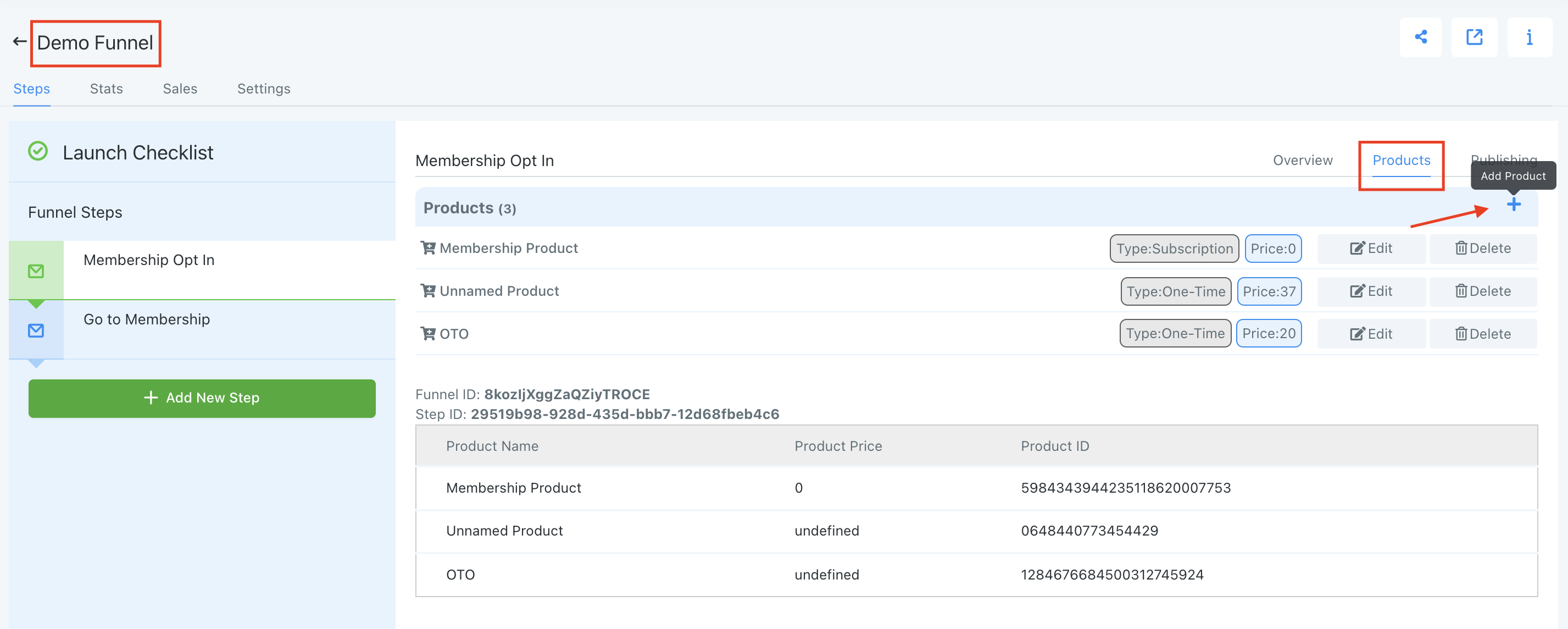
- Select the funnel you wish to add the product to.
- Navigate to the Products tab.
- Click the + to Add Product.
- Choose “One Time”. When you do so, all of the Stripe information goes away.
- Add the Product Name, Product Price, Monetary Value, Currency, Price Display Override, and Product Description.
- You can also toggle on the “Membership Offer” and “Bump Product” options.
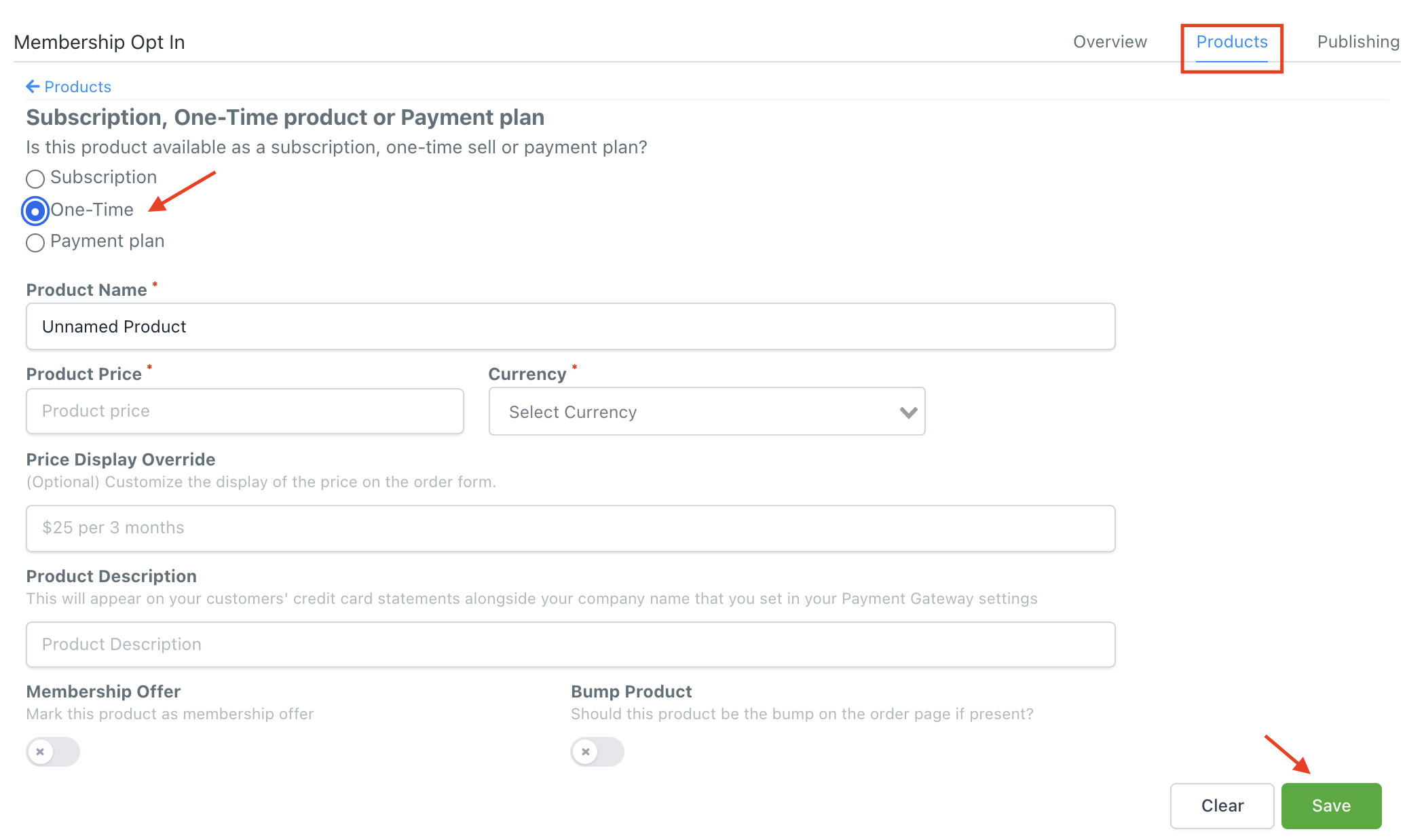
- Click Save to confit your changes.
Step 2: Add the Product to your Funnel
- Navigate to Overview and Edit Page to enter the funnel builder.
- In the builder, you'll need to add an element. The element needs to be a two-step order form.
- Then you can update the two-step order form settings from the panel on the left-hand side. You can customize the Shipping and Info tabs.
- General Settings will allow you to customize the visual aspects.
- Advanced Settings will allow you to customize the fields of the order form, and additional aspects that can be altered.
- NOTE: changing the text in a two-step order form field doesn’t change where the field will populate in a contact record. For example, the email address field will always populate the information into a customer’s email address field within their record. Therefore, it is recommended to not change “Email Address” to “Phone Number” but you could customize it to say “Personal Email Address” or “What’s the best email address to reach you at?”
- “Dynamic Item” and “Price”: In Step #2 of the order form, where it says “Dynamic Item” and “Price”, these are just placeholders, so long as you’ve followed step 1 and added the product before adding the form into the funnel builder. In preview mode, this will display your product and price.
Related Articles
Follow these steps to learn how to add a one-time product to your funnel. Note that a one-time product can be added directly into the funnel and builder, while a subscription product needs to be pre-configured in Stripe. (Check out our other
This tutorial will walk you through how to update and customize the favicon within your funnel. What is a favicon? It’s often known is a tab icon, URL icon, bookmark icon, and more. It is an image file containing one or more icons associated with a ...How To Activate The One-Click Purchase In Your Funnel Step
OTOs (One Time Offers) or Upsell Offers are great to put after your normal 2 Step Order Form Page. This means the customer has already purchased your main offer and you want to offer them an upsell product. The great thing about the one click option, ...How To Add A Subscription Product To Your Funnel
Follow this tutorial to learn how to add a subscription product to a funnel. Please note the process is slightly different from adding a one-time product, so if you’re looking to do that, check out our other tutorials! This setup requires you to have ...Funnel and Funnel Builder Overview
Here's an overview of the funnel section, as well as the funnel builder where you can customize your funnel steps/pages. Step 1: How to Navigate To and Utilize the Funnel Section Start by navigating to the Funnels section. You can a view a list of ...How To Use Time Delay In The Funnel and Website Builder
You may want to delay the appearance of certain elements in your funnels or website. This can be done using the Countdown timer, or time delay feature, within the builder. Step 1: Hiding initial visibility. To have something pop up after a time ...