Contacts Overview
Here's an overview of the Contacts section of LANA. We'll show you how to add, export, search, and filter through your contact records to stay organized.
Step 1: Access your Contacts section.
- Navigate to Contacts.
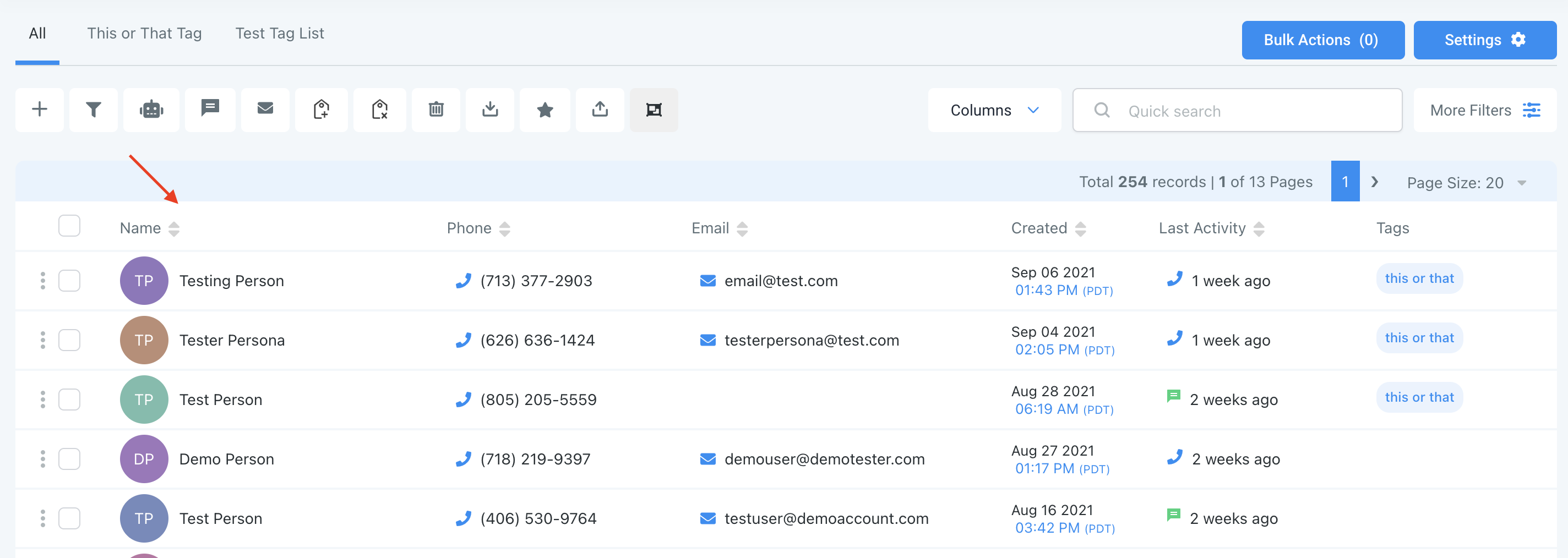
- The main page displays a list of all your contacts and basic information like name, phone number, email, when they were created, last activity, and tags.
- By dropping down the columns menu at the top, you can update which columns are displayed.
Step 2: How to Search and Filter through your contacts.
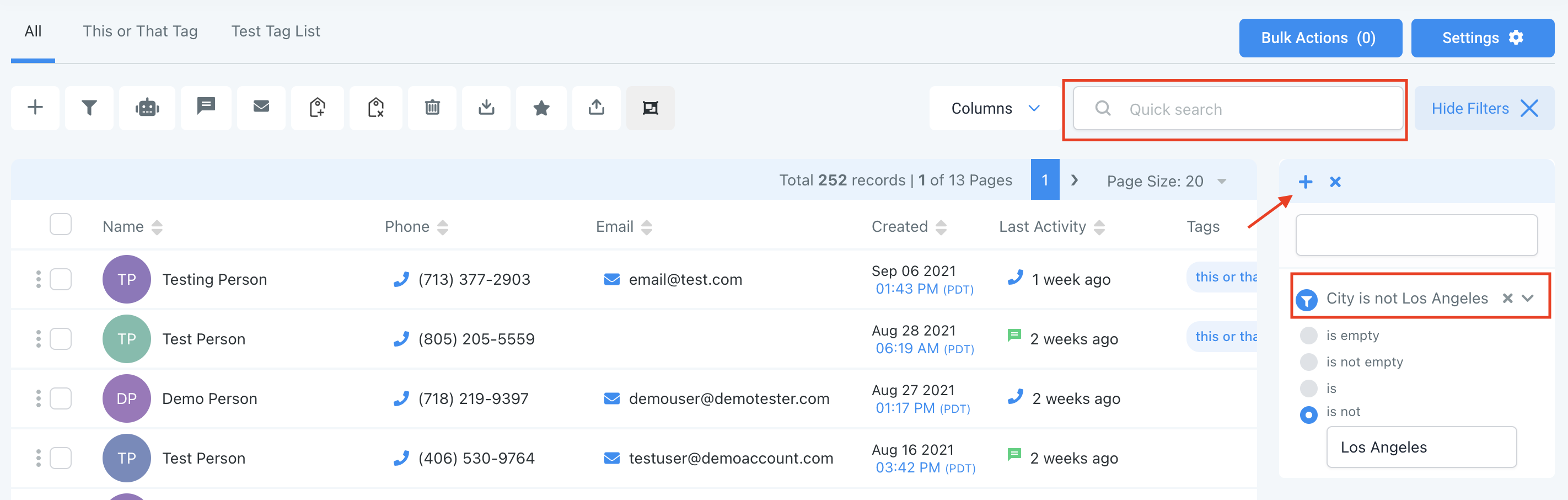
- You can also use the Quick Search feature to do a quick search by name, email, business name, tag, or phone number.
- Under More Filters you can Filter through contacts using a variety of specific options including Tag is ___, City is Not ___, Phone Number Field is Empty, and more…
- NOTE: Check out our Smartlist video/article to learn more in depth about how to use and save these filters. You can use multiple at once to filter out Contacts very specifically.
Step 3: Additional Actions
- Using these Actions icons at the top, you have several options for adding or removing contacts, and applying bulk actions. Our Bulk Actions tutorial gives a full overview of each of these actions. The most foundational are:
- Add contact: manually add an individual contact record
- Export Contacts: select a list of contacts to export to your computer (the file will download as a .csv Excel file)
- Import Contacts: Add a list of contacts into LANA, using a .csv file

Related Articles
Managing Contacts
This video covers a brief overview of the contacts section including the list of contacts, quick search, filters, adding a contact, the pipeline stage, adding and removing tags, deleting a contact and viewing a contact in detail.Conversations Overview
In this tutorial, we’ll provide a review of the Conversations section of your menu. Read on to learn how to navigate through this section. Step 1: Accessing Your Messages. Click into your Conversations inbox. In the first column on the left, you’ll ...LANA: My Profile Overview
My Profile Overview This section in LANA Software allows you to personalize and manage key profile details, ensuring that your information and preferences are always up to date. Personal Information Name, Email, and Phone Number: Update essential ...Tags Overview
The tag feature is a great way to organize your contacts. Adding and removing tags will help you determine specific actions and stages that a contact is at (similar but more granular than a pipeline stage). You can add more than one tag to contact. ...Overview
This video is an overview of the dashboard screen.